Download TSC Diagnostic Tool from the TSC support page and connect the TE210 via USB
JULY 1, 2026 / PRINTER ISSUES
TSC TE210 Not Printing, Skipping Labels, or Printing Blank? Here's the Real Fix
TSC TE210 not printing, skipping labels, or printing blank? Usually it's calibration, the sensor type, or the Windows driver gap-mode bug. Free 2026 fix.
FREE PLAN · NO CREDIT CARD · WINDOWS / MAC / LINUX / WEB

THE PROBLEM
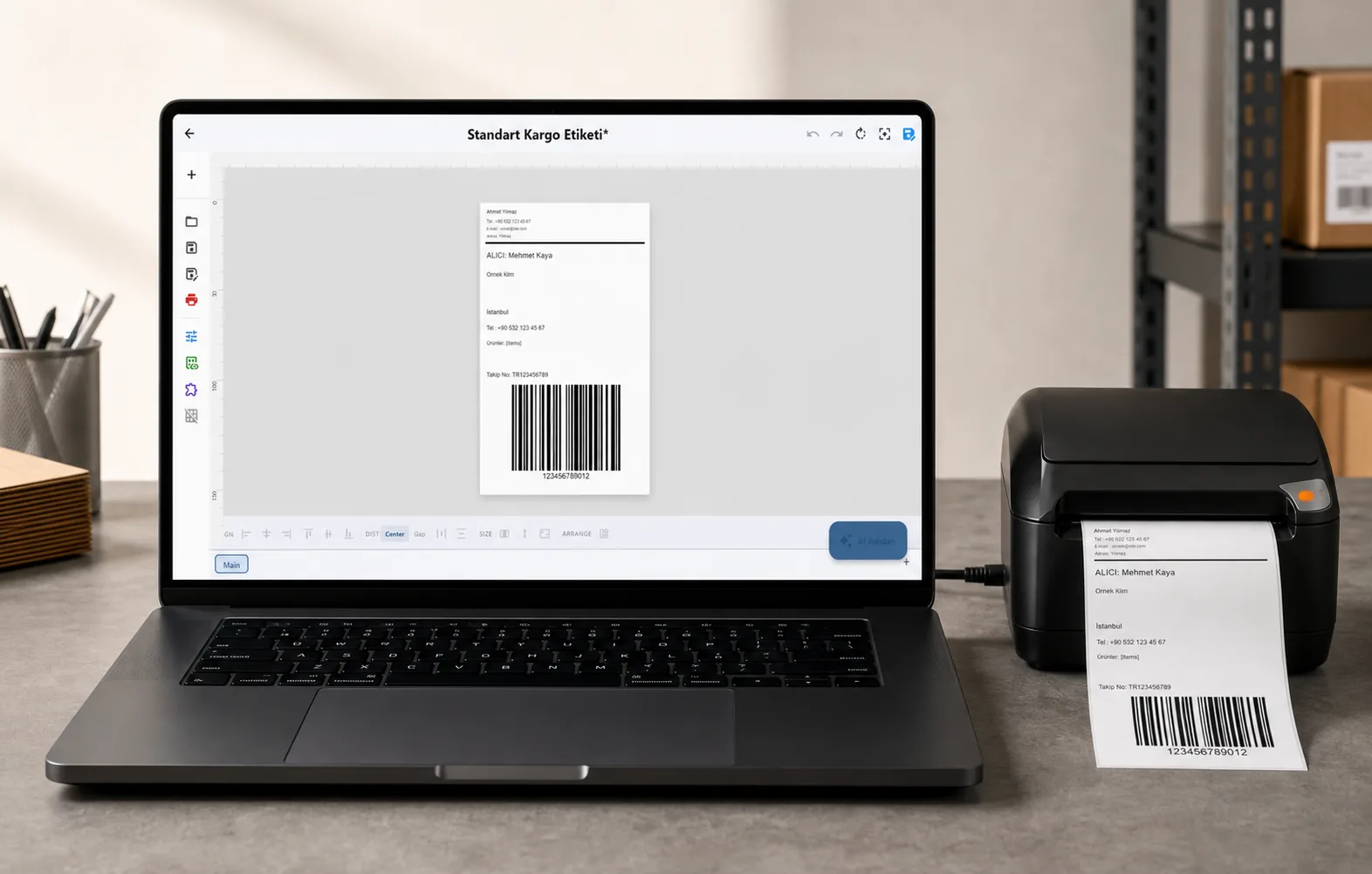
You send a job to your TSC TE210 and it does the wrong thing: feeds a blank label, skips every other label, prints one label and stops, or spits out a completely empty label even though the roll is fine. You've reloaded the media, restarted the printer, maybe reinstalled the driver — and it keeps happening. This is one of the most common TE210 complaints, and the reassuring part is that it's almost always a calibration, sensor-type, or driver problem — not a dead printhead.
The TE210 is a 203-dpi desktop printer and the entry-level member of the same family as the TE310 and TE244. It finds the edge of each label with a transmissive gap sensor (and a reflective black-mark sensor for marked media). When it "skips" or feeds blanks, it means the printer has lost track of where one label ends and the next begins — so it overshoots or prints in the wrong place. Because the TE210 is thermal-transfer capable, it can also print blank if the print method and media don't match. We'll fix both, fastest fix first.
Tired of the TSC Windows driver fighting your TE210 — or stuck on a Mac? LabelInn speaks TSPL directly to the printer, setting sensor type, print method and label size correctly every time — on macOS and Windows. Try free for 14 days →
01
Symptoms: What This Looks Like
- Printer feeds one or more blank labels for every print job
- Skips every other label — prints one, feeds past the next
- Prints one label and stops, ignoring the rest of the job
- Content is shifted up or down, or split across the gap onto two labels
- Label comes out completely blank even though the printer is feeding
- The ready/error LED blinks red or the printer pauses mid-roll
- Calibration seems to work but breaks again the next day or the next job
- It worked fine, then broke after a Windows update or after changing label size
That "breaks again quickly" symptom is a key tell. If the sensor were genuinely dirty, cleaning it would hold for weeks. If skipping returns within hours of a cleaning, the culprit is the driver, not the hardware — jump to Fix 3.
Fix 1: Calibrate the Gap Sensor (Start Here)
Calibration teaches the TE210 the exact length of your labels and the size of the gap between them. Any time you change label size, swap rolls, or start seeing skipping, this is the first thing to do — it resolves the majority of skipping and blank-feed cases on its own.
Method A: TSC Diagnostic Tool (recommended)
Open the Calibrate Sensor panel
Choose Gap for die-cut labels (or Black Mark if your labels have a black mark on the back), enter your paper height and gap, and click Calibrate
The printer feeds and measures your labels. Send a test print — the label should now land in the right place.
Method B: FEED-button calibration (no PC)
- Power off the TE210 and make sure labels are loaded correctly with the cover closed
- Hold the FEED button and power the printer back on
- Keep holding until the printer feeds several labels to measure the gap, then release
- Print a test label to confirm it lands correctly without skipping
Fix 2: Set the Correct Sensor Type and Label Size
The TE210 has to know what kind of media it's looking at. If it's set to Continuous but you're printing die-cut labels, it will never find the gap and will feed blanks or skip. Getting the sensor type wrong is behind a large share of "skipping labels" reports.
| Your labels | Set Sensor Type to |
|---|---|
| Die-cut labels with a gap between them | Gap (Transmissive) |
| Labels with a black mark on the back | Black Mark (Reflective) |
| Continuous receipt / tag roll (no gap) | Continuous |
Set this in TSC Diagnostic Tool → Printer Configuration, or on the Options / Stock tab of the Windows driver. While you're there, set the label width, height, and gap to match your physical labels to the millimeter, then run calibration again (Fix 1) so the new setting takes effect.
Fix 3: Work Around the Windows Driver Gap-Mode Bug
Here's the fix most TE210 owners never find. If you've cleaned the sensor, calibrated, and set the right dimensions but the printer still skips or stops midway — and the problem keeps coming back — the cause is usually the TSC Windows driver mishandling Gap sensor mode. Across certain driver versions and Windows builds, the driver constructs TSPL commands that carry the wrong gap length or gap offset, so the printer receives an instruction it can't execute cleanly. This is the same driver bug documented on the TE310, and because the TE210 shares the same driver and gap-sensor design, it behaves identically.
The workaround sounds counter-intuitive but works instantly: switch the Sensor Type from Gap to Black Mark, even though your labels use a normal gap. In Black Mark mode the printer positions each label using the explicit label height and form length you set, rather than the optical gap calculation the driver corrupts.
Open TSC Diagnostic Tool → Printer Configuration (or the driver's Advanced / Device Settings tab)
Change Sensor Type from Gap to Black Mark
Set Label Height and Form Length to exactly match your physical label (for example 100 mm height with the full pitch including the gap)
Click Set to write the configuration, then recalibrate (Fix 1)
Print a test label — it should feed and print cleanly, even on gapped labels
Fix 4: Clean the Gap Sensor (for Genuine Dirt)
If calibration, sensor type, and label size are all correct and it still skips, the transmissive gap sensor may be blocked by label dust or adhesive residue — common on high-volume machines or in dusty warehouses. This is a real cause, but it's secondary to the driver issue above.
Power off the TE210 and unplug it
Open the top cover and remove the label roll
Locate the gap sensor in the label path — a small optical eye near the center of the label track. The transmitter is on the lower plate and the receiver on the top arm, so clean both sides
Dampen a cotton swab with 99% isopropyl alcohol and gently wipe the sensor lens; wipe the platen roller too
Let it dry 1–2 minutes, reload the roll, and recalibrate (Fix 1)
02
Bonus: Blank Labels Even Though It's Feeding
If the TE210 feeds but the label comes out totally blank, it's a print-method or media problem, not a calibration one. Because the TE210 is thermal-transfer capable, it must be told how it's making marks:
- Print Method set to Thermal Transfer with no ribbon: if the driver expects a ribbon and none is installed, nothing prints. Either install a ribbon or switch the print method to Direct Thermal.
- Direct-thermal labels loaded upside down: the heat-sensitive side must face up toward the printhead. Scratch a label with your fingernail — the side that turns dark is the printable side.
- Darkness too low: raise the darkness/density a few steps in TSC Diagnostic Tool or the driver if the print is faint but present.
Set the print method in TSC Diagnostic Tool → Printer Configuration or on the driver's Options tab, and confirm the ribbon (if any) is winding correctly with the ink side facing the labels.
03
The Root Cause for Many Users: The Windows Driver Itself
Notice how many of these fixes come back to the driver telling the printer the wrong thing — wrong gap parameters, wrong size, wrong sensor mode. That's not a coincidence. On Windows it's a nuisance you can work around with Black Mark mode; on macOS, where TSC ships no full driver, it's a dead end. The TE210's firmware is fine — the command pipeline feeding it is what usually breaks.
That's exactly why some teams take the driver out of the loop entirely. The TE210 understands TSPL, TSC's own printer language, directly. Driverless label software like LabelInn sends TSPL straight to the printer over USB or the network — it sets the sensor type, print method, and label dimensions correctly on every job, so there's no generic-driver guessing, no gap-mode corruption, no "prints one label and stops," and it works identically on macOS and Windows.
QUESTIONS / FAQ
Frequently Asked Questions
How do I calibrate a TSC TE210?
Use TSC Diagnostic Tool → Calibrate Sensor → Gap (or Black Mark), enter your paper height and gap, and calibrate. Or power off, hold FEED, power on, and release when it feeds a few labels. Both teach the printer your label geometry so it stops skipping.
Why does my TE210 skip every other label?
It can't see the gap between labels. Either it needs calibration, the Sensor Type is set wrong (commonly Continuous instead of Gap), or the TSC Windows driver is sending corrupt gap parameters. Set Sensor Type to Gap, calibrate, and if skipping returns quickly, switch to Black Mark mode to bypass the driver bug.
I cleaned the sensor and calibrated but the skipping came back in an hour.
That's the clearest sign it's a driver issue, not hardware. A genuinely dirty sensor stays clean for weeks. When skipping returns within hours, the sensor is fine and the Windows driver is applying wrong gap parameters each job. Switch the Sensor Type to Black Mark, set exact label dimensions, and recalibrate.
My TE210 prints one label then stops. What causes that?
The label size in the driver doesn't match your physical label, so the printer thinks the job is done. Set the exact label width, height, and gap in the driver to match your media, recalibrate, and reprint. A generic driver installed automatically by Windows is the usual trigger.
The TE210 feeds but the label is blank. Why?
Usually the Print Method is Thermal Transfer with no ribbon installed, or direct-thermal labels are loaded upside down (the heat-sensitive coating must face the printhead), or the darkness is too low. Match the print method to your media, check orientation with a scratch test, and raise the darkness if needed.
Can I use a TSC TE210 on a Mac?
TSC doesn't ship a full macOS driver for the TE210, so the normal driver path won't work. Because the TE210 speaks TSPL, a driverless app like LabelInn can print to it directly from macOS and Windows, handling sensor type, print method, and label size for you.
KEEP GOING
Related Articles
NEXT STEP / LABELINN
Skip the Driver Guesswork on Your TE210
LabelInn talks to your TSC TE210 in its native TSPL language, so the printer always knows your label size, sensor type, and print method — no gap-mode bug, no calibration loops, no label waste. Design labels visually, let AI lay them out in plain English, or print in bulk from Excel — and even print from your phone. Download LabelInn free and connect your TE210 in under a minute. Free tier available; paid plans from $7.99/month. · Direct TSPL — no Windows driver in the middle · Correct sensor, method & size every job · Works on macOS & Windows