FEBRUARY 7, 2026 / PRINTER ISSUES
Gap Sensor vs Black Mark Sensor: Which to Use & How to Switch (TSC)
TSC printer skipping or feeding blank labels? Learn when to use gap vs black mark sensor, how to switch modes, and how to calibrate in under 5 minutes.

THE PROBLEM
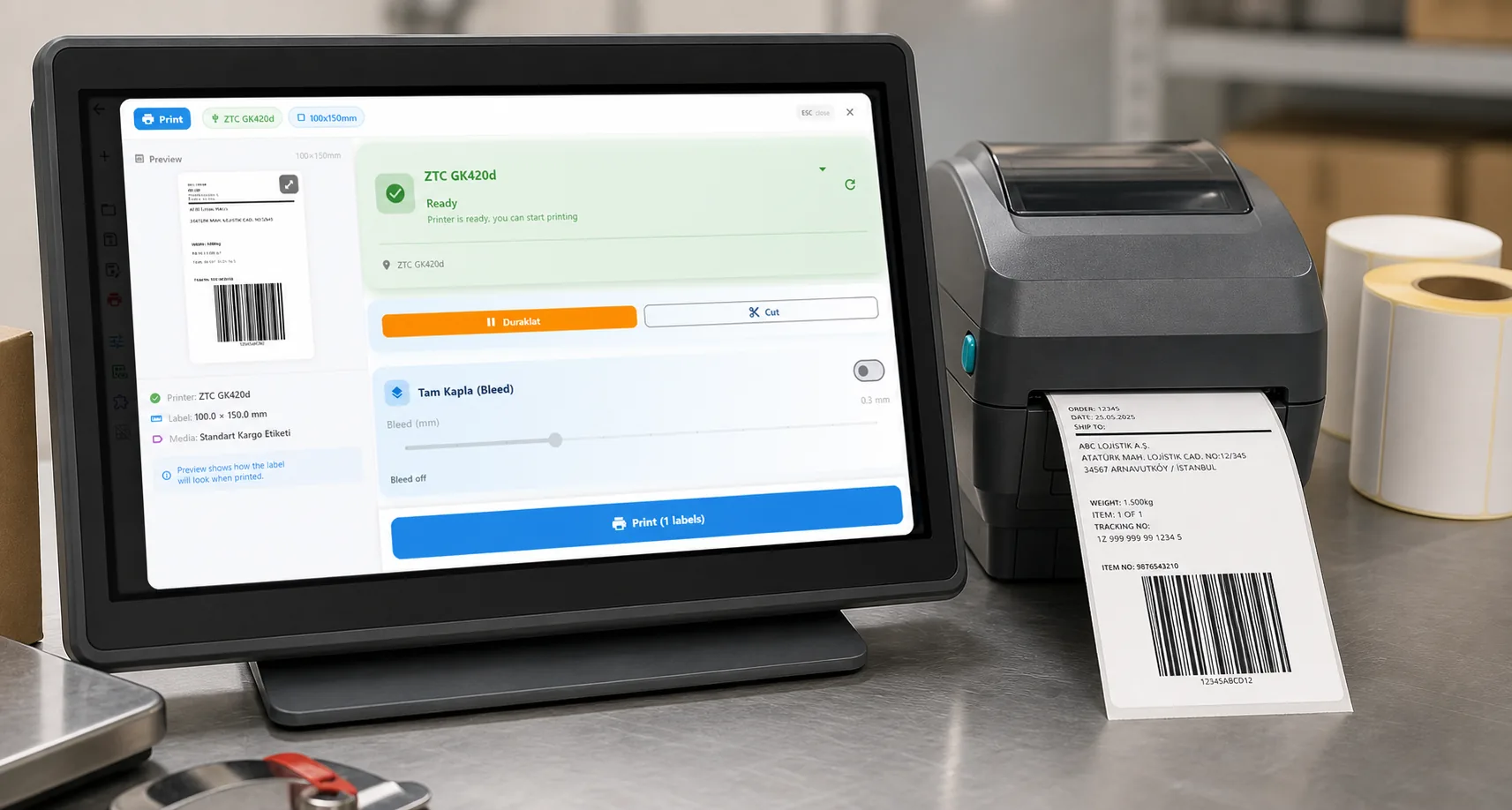
A gap sensor and a black mark sensor are two different ways a thermal printer finds the top of each label. A gap (transmissive) sensor shines light through the liner and detects the transparent gap between die-cut labels. A black mark (reflective) sensor reads a printed black line on the back of the media. Pick the mode that matches your labels — using the wrong one makes the printer skip, misread, or flash an "Error" light.
This guide explains the difference, helps you choose the right mode for your TSC printer (TE244, TTP-244 Pro, TC200, DA220, etc.), and shows exactly how to switch modes and recalibrate.
Not sure which sensor mode your labels need? LabelInn auto-configures TSC gap/black mark sensor settings — no manual calibration needed. Try free for 14 days →
01
Gap Sensor vs Blackmark: Understanding the Difference
TSC printers have two different label detection methods:
| Feature | Gap (Space) Sensor | Blackmark (Black Mark) Sensor |
|---|---|---|
| Working principle | Detects transparent gap between labels | Detects black line on back of label |
| Sensor type | Transmissive (transparent light transmission) | Reflective (reflection from black line) |
| Label type | Standard labels (with gaps between them) | Continuous roll, labels with black line on back |
| Use case | Address labels, barcode labels, shipping labels | Receipts, label rolls, custom-cut labels |
02
Problem Identification: What Are the Symptoms?
Gap Sensor Issues
- Printer skips one blank label every 2 labels
- Labels printing shifted up or down
- "Error" or "Paper Out" LED is on
- Printer starts printing from the middle of the label
Blackmark Sensor Issues
- Printer keeps advancing but doesn't stop
- Labels are cut at random sizes
- "Media Error" message appears
- Sensor doesn't see the black mark
03
Solution 1: Set the Sensor Type Correctly
Using TSC Diagnostic Tool
- Download TSC Diagnostic Tool you can download it from TSC support page
- Run the program and select the printer (USB connected)
- Go to "Printer Configuration" tab
- Click "Set" or "Apply" button
- Click "Calibrate" button to start calibration
From the Printer (Using Buttons — No Screen Required)
Most TSC desktop printers (TE244, TTP-244 Pro, DA220) don't have a display screen — all settings are done either through the TSC Diagnostic Tool on your computer or through button combinations on the printer itself:
- Turn off the printer
- Keep pressing the FEED button while turning on the printer
- Release the button when the LED starts flashing
- Printer will perform automatic calibration — it will advance a few labels
- Calibration is complete when the LED stays solid green
04
Solution 2: Physically Clean the Sensor
If calibration doesn't work, the sensor may be dirty:
- Turn off the printer and unplug it
- Open the cover and remove the label roll
- Find the sensor area usually at the bottom of the label path
- Wipe the sensor with a cotton swab moistened with isopropyl alcohol (99%)
- Wait for it to dry (1-2 minutes)
- Insert label roll and perform calibration
05
Solution 3: Check Sensor Position
On some TSC models, the gap sensor can be moved horizontally. The gap section of the label must be directly above the sensor.
| Model | Sensor Position | Adjustable? |
|---|---|---|
| TSC TE244 | Center | No (fixed) |
| TSC TTP-244 Pro | Center | No (fixed) |
| TSC TC200/300 | Adjustable | Yes sliding mechanism |
| TSC DA220 | Center | No (fixed) |
Solution 4: Switch to Black Mark Mode — Even with Gap Labels (The Real Fix)
Why Does Your Printer Get Stuck in the Middle of the Label?
Here's what's actually happening: when you print from Windows, the Windows printer driver sends sensor configuration commands to your TSC printer. The problem is that the driver often sends the wrong sensor mode or sends conflicting commands that override your calibration. Your printer receives the print data, tries to use the gap sensor with broken settings, and gets lost — it starts printing from the middle of the label, skips every other label, or just feeds paper endlessly.
This isn't a hardware problem. Your gap sensor is fine. Your labels are fine. The Windows driver is sending garbage sensor configuration to your printer.
The Fix: Force Black Mark Mode
When you switch to Black Mark mode, the printer uses a completely different detection method that the Windows driver can't mess up as easily. The reflective sensor reads the contrast between the label and the backing paper — and on gap labels, the gap itself creates enough contrast difference for the black mark sensor to detect it reliably.
Method A: Through Windows Printer Preferences (No Extra Tool Needed)
You don't need to download anything — this works directly from Windows:
Method B: Through TSC Diagnostic Tool
If Method A doesn't work or you want more control:
Tired of fighting with Windows drivers every time you print? LabelInn talks directly to your TSC printer — no driver, no sensor conflicts, no wasted labels. Try free for 14 days →
06
TSC Printer Sensor Settings with TSPL Commands
For technical users: TSC printers support the TSPL command language. You can send commands directly via terminal or TSC Diagnostic Tool:
GAP 3 mm, 0 mm       // Gap sensor: 3mm gap
BLINE 3 mm, 0 mm     // Blackmark sensor: 3mm black line
DIRECTION 1,0        // Print direction
CLS                  // Clear screen
PRINT 1,1            // Print 1 copy
07
Model-Based Troubleshooting Guide
TSC TE244
- Most common issue: not calibrating after label change
- Solution: Press and hold FEED button for 3 seconds to calibrate
- Gap sensor is in fixed position make sure label is centered
TSC TTP-244 Pro
- Industrial model ribbon must be installed
- If ribbon is finished or installed incorrectly, sensor errors may occur
- Also clean the ribbon detection sensor
TSC DA220
- Direct thermal model doesn't use ribbon
- Easy setup but sensitive sensor dust accumulation causes problems
- Sensor cleaning recommended every 3 months
08
macOS + TSC Printer, Without the Driver Detour
LabelInn can print directly from macOS to a TSC TE210 using native printer commands, keeping the Windows driver out of this workflow:
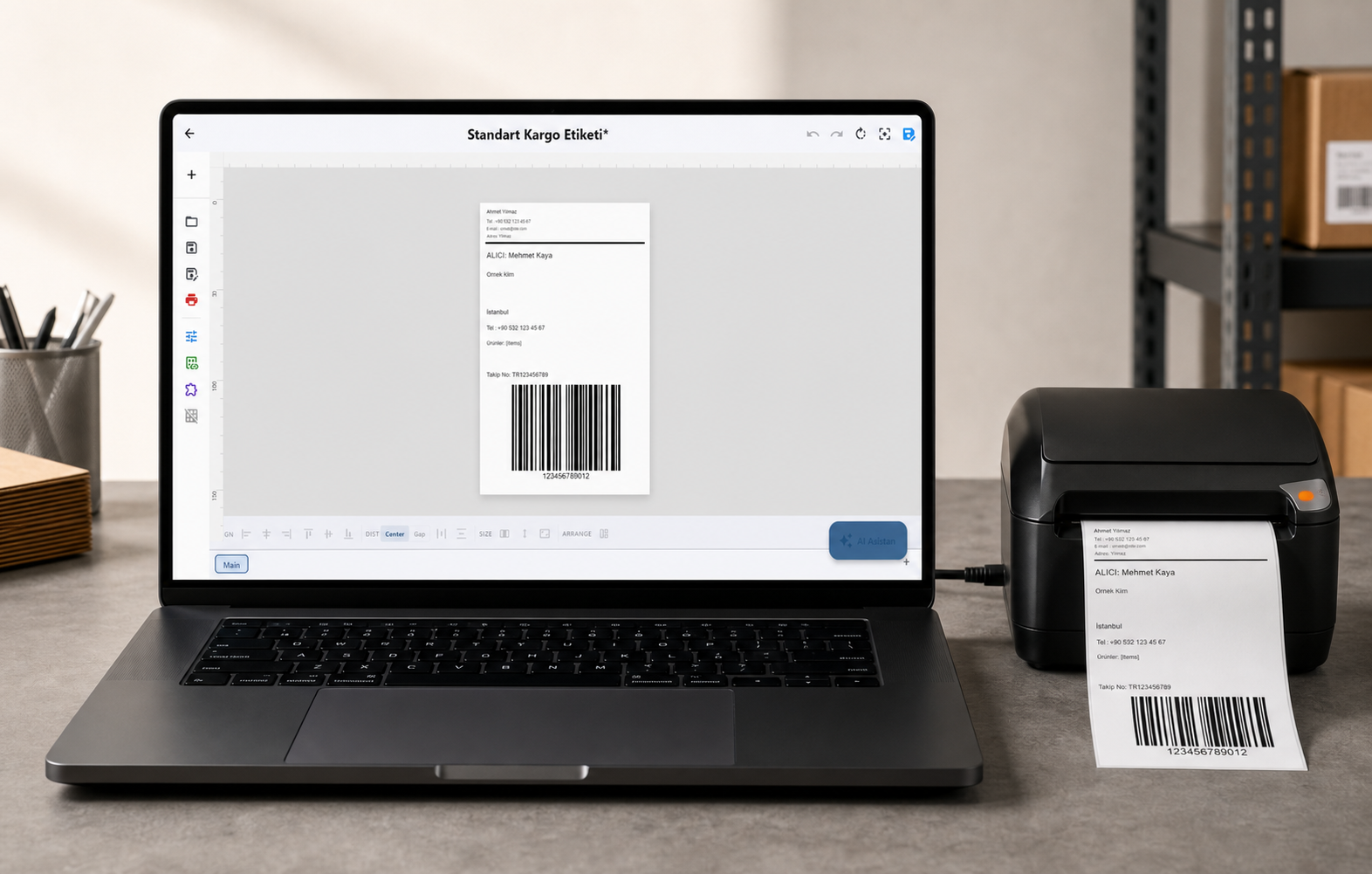
When LabelInn sends commands directly to the printer, the Windows driver's buggy gap sensor handling is completely out of the picture. Labels come out perfectly every time.
QUESTIONS / FAQ
Frequently Asked Questions
Are gap and blackmark sensors the same on my TSC printer?
No. Gap sensor (transmissive) detects the gap between labels via light transmission. Blackmark sensor (reflective) detects the black line on the back of the label via reflection. They are different physical sensors, but some models have a single sensor that supports both modes.
How many labels are wasted during calibration?
Usually 2-4 labels. This is normal, the sensor is learning the label size and gap.
Can I use a TSC printer on macOS?
Yes. TSC printers support ZPL emulation. You can use them on macOS without installing a driver with LabelInn.
Does TSC Diagnostic Tool work on macOS?
No, it only works on Windows. For sensor settings on macOS, you can use LabelInn or send TSPL commands via terminal.
KEEP GOING
Related Articles
NEXT STEP / LABELINN
Tired of TSC Calibration Problems? LabelInn Fixes Them Automatically.
LabelInn configures your TSC printer's sensor settings automatically. Just enter your label dimensions — LabelInn handles calibration on its own. No driver confusion, no label waste. Free tier available; paid plans from $7.99/month. · Gap labels work out of the box · Auto-detects calibration — no manual steps · Works on macOS & Windows