FREE PLAN AVAILABLE / 14-DAY PRO TRIAL
TSC Label Printer Software for Windows
TSC TE210, TE310, DA310 and TTP series on Windows 10 and 11 without driver conflicts. Sends TSPL directly, bypassing the print spooler.
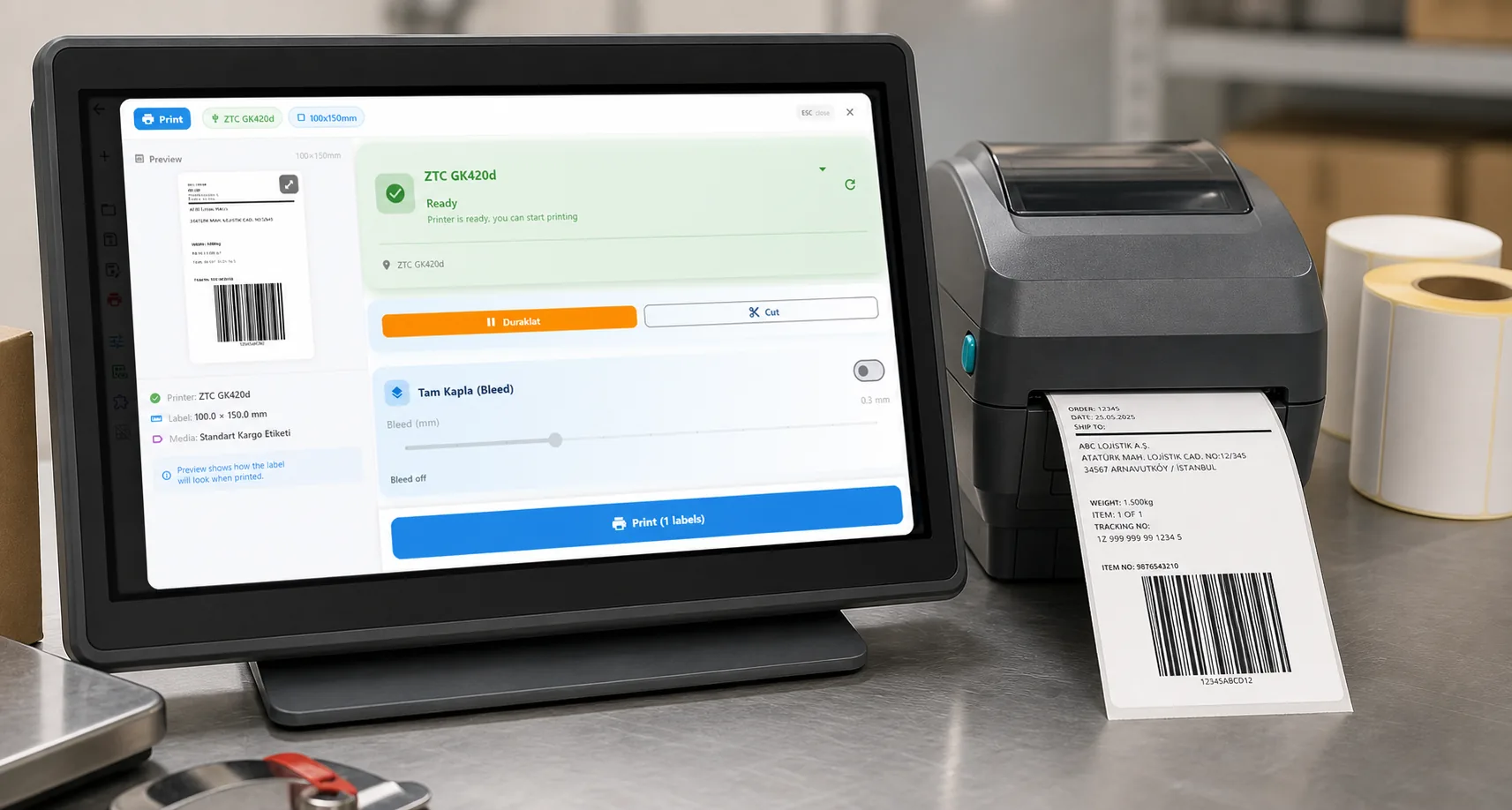
HOW IT WORKS
Three screens from data to printed label.
No copy-paste, no hunting for templates. The same flow repeats for every record.
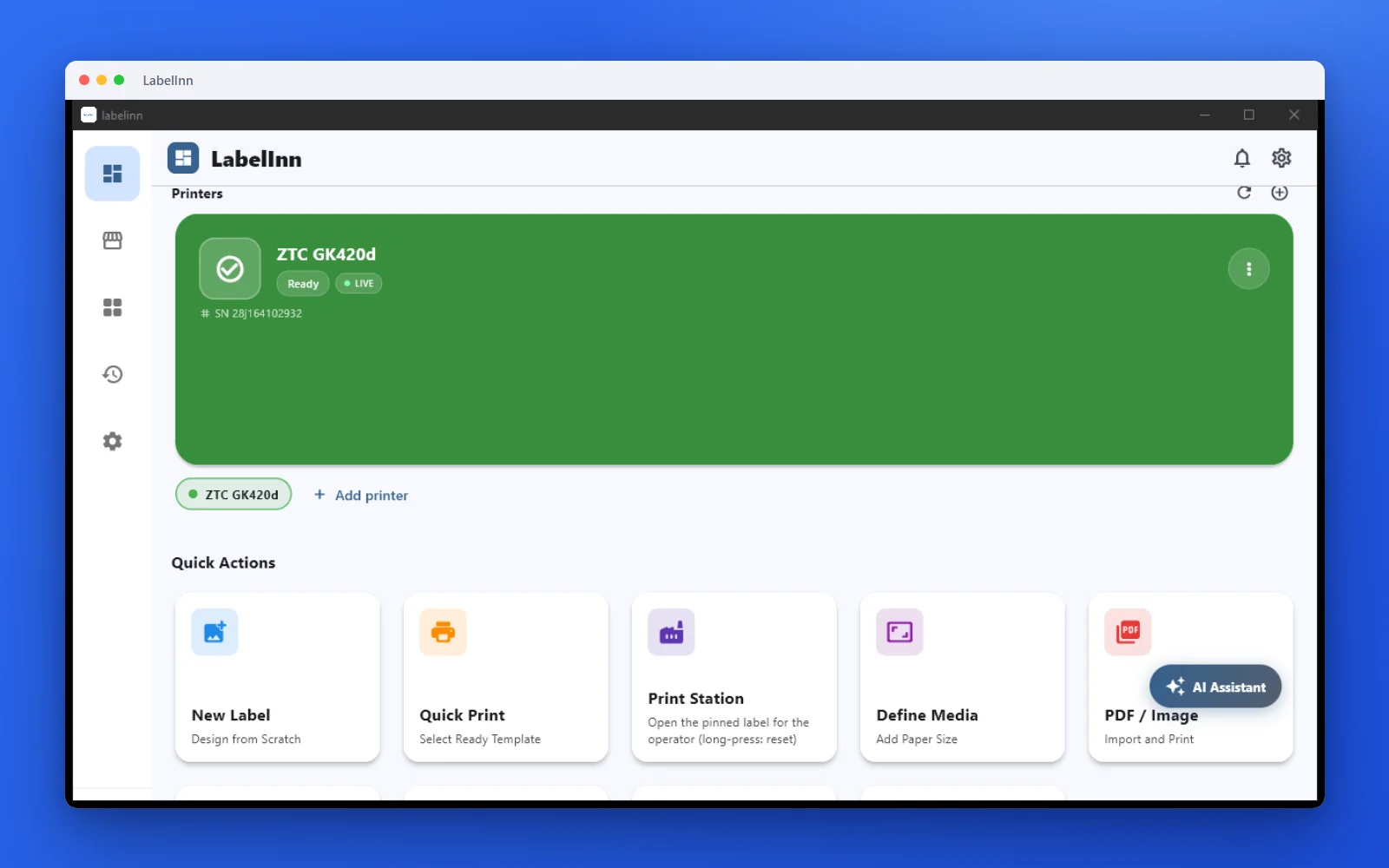
Printer status, quick actions and recent work in one place.
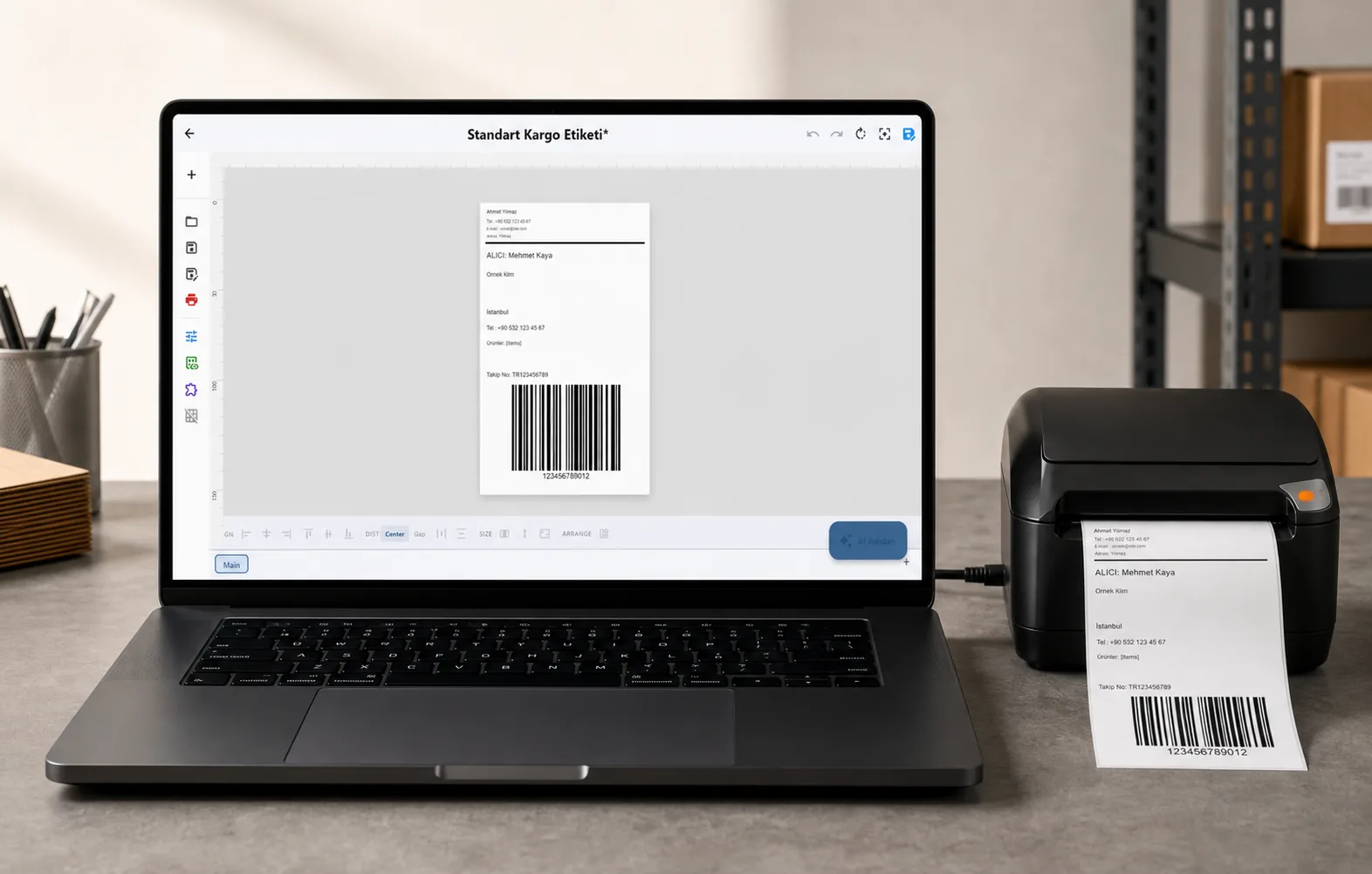
Text, barcodes, QR and images placed on the real media size.
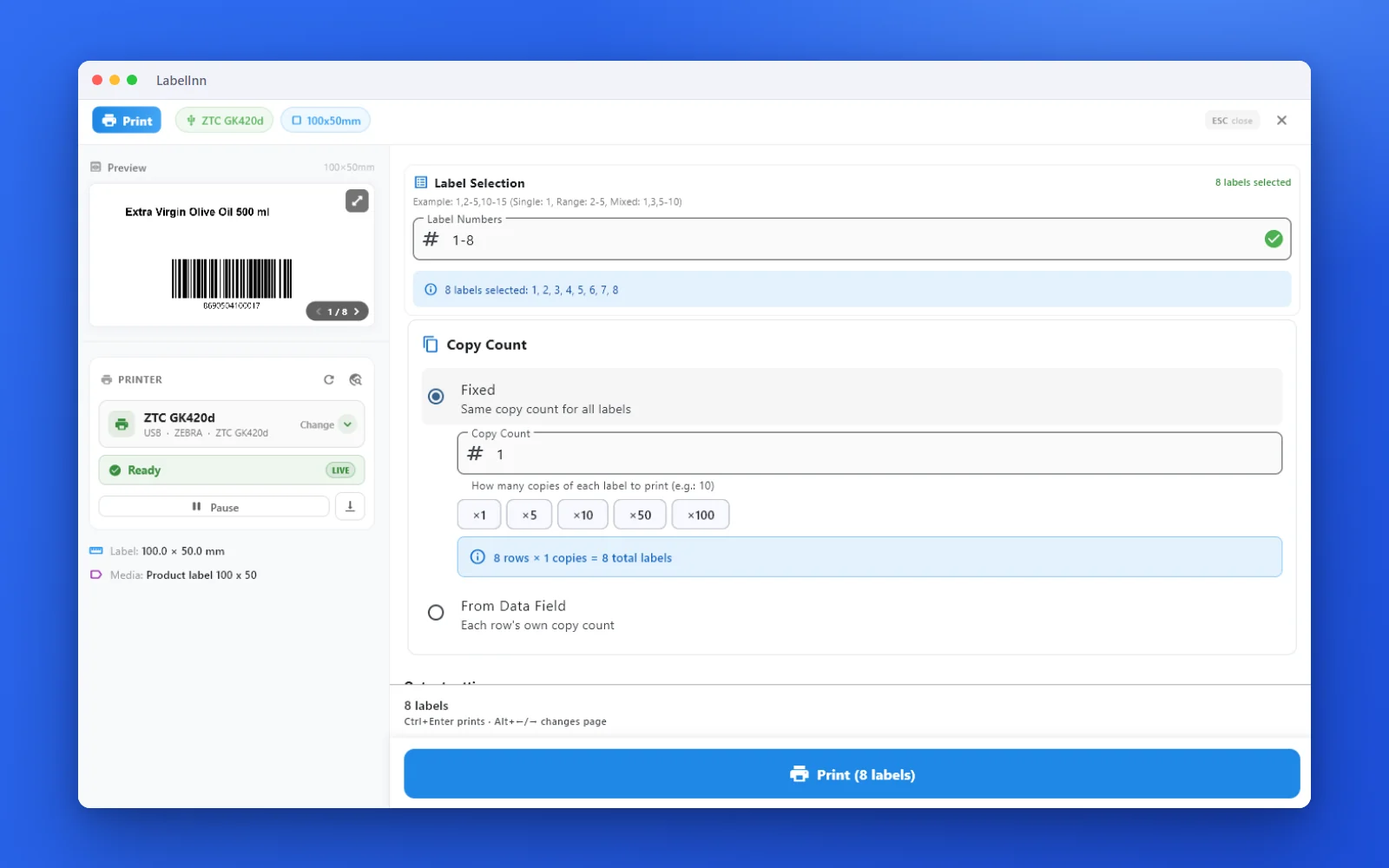
See the label, the printer state and the copy count before it prints.
01
Why this is hard today
The usual Windows setup routes labels through a vendor driver and the print spooler. When that stack misbehaves — and on Windows 11 it frequently does — you get skipped labels, blank feeds, or a queue that reports success while nothing prints.
02
What LabelInn does instead
TSC printers speak TSPL. LabelInn generates TSPL and writes it to the printer over USB or network directly, so the spooler is not in the path. Label size, gap sensor mode, darkness and speed become explicit commands rather than driver settings.
Gap versus black mark
The single most common TSC complaint is skipped or blank labels, and it is nearly always sensor mode. Continuous or black-mark media read with a gap sensor will misfeed every time. Set the mode explicitly and calibrate.
03
Supported TSC models
Any TSC printer that accepts TSPL should work. Commonly used models include:
- TSC TE210
- TSC TE310
- TSC DA310
- TSC TTP-244 Pro
- TSC TDP-225
- TSC MB240
This list is not exhaustive and model names belong to their manufacturer. LabelInn is not affiliated with TSC. If your model speaks TSPL, try it on the free plan before committing.
04
How to get printing
- Download LabelInn for Windows and open it.
- Add the printer over USB or network. No vendor driver install.
- Set the label size and sensor mode to match your roll, then calibrate.
- Design the label — or bind a spreadsheet column and print one label per row.
05
Frequently asked
Why does my TSC printer skip labels on Windows 11?
Usually the sensor mode is wrong or the driver is mis-translating the label size. Setting gap or black mark explicitly and calibrating resolves most cases.
Do I still need the TSC driver?
No. LabelInn writes TSPL directly over USB or network. You can leave the vendor driver installed for other software; it is not used.
Which TSC models work?
TE210, TE310, DA310, TTP-244 Pro, TDP-225 and other TSPL units.
Does it work on Windows 10?
Yes, Windows 10 and Windows 11, 64-bit.
Try it with your own TSC The free plan is enough to add the printer, calibrate it and print a real label. If it does not drive your model, you have lost ten minutes rather than a licence fee. 11015;️ Download for Windows →
THE PROBLEM, THEN THE FIX
Printing to a label printer from Windows without driver headaches
Choose the LabelInn printer in any app, set the media in its preferences, print.
The problemThe default driver treats a label roll like a sheet of paper.
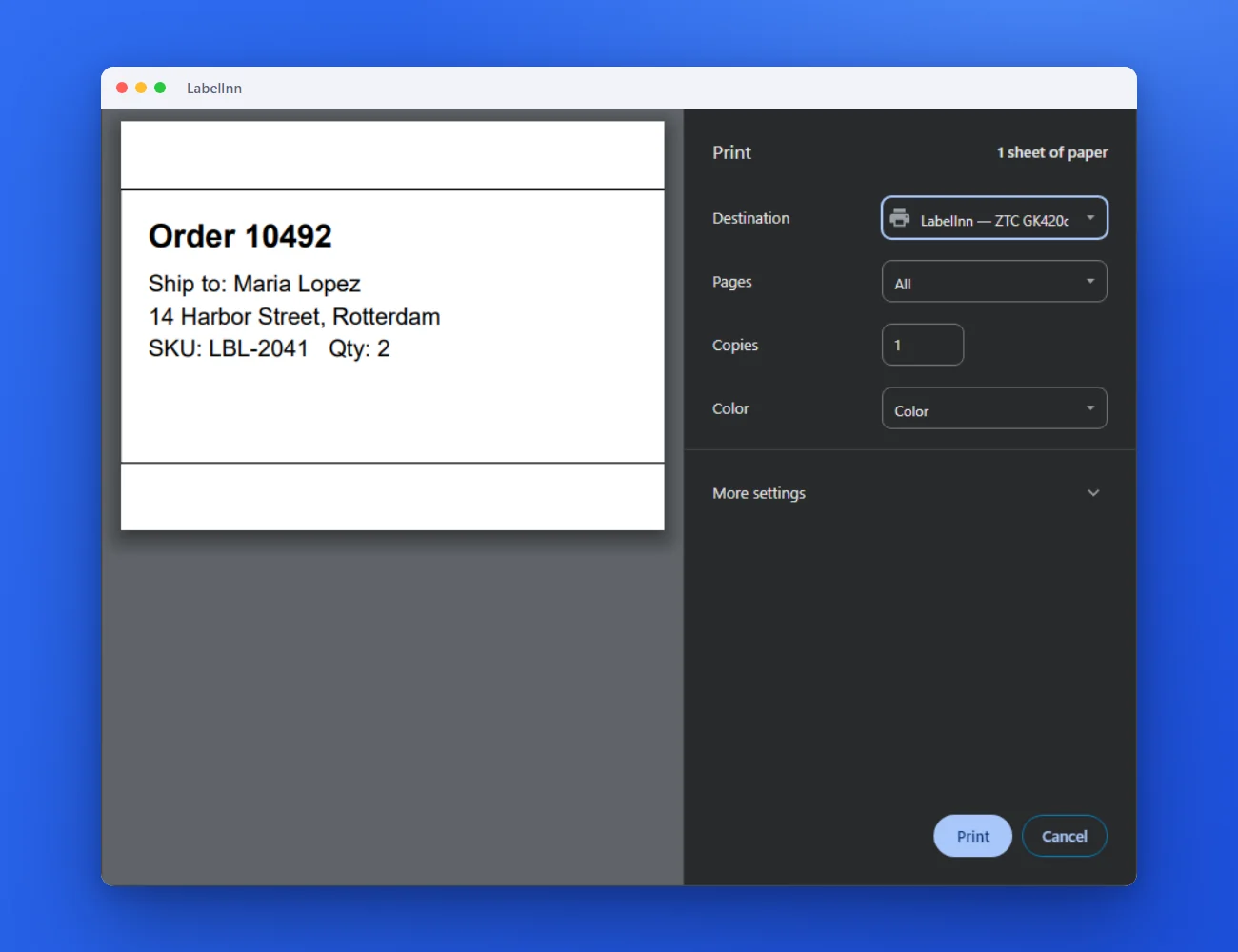 1Pick the LabelInn printer in any appIt shows up next to your other printers in Word, Chrome or whatever you print from.
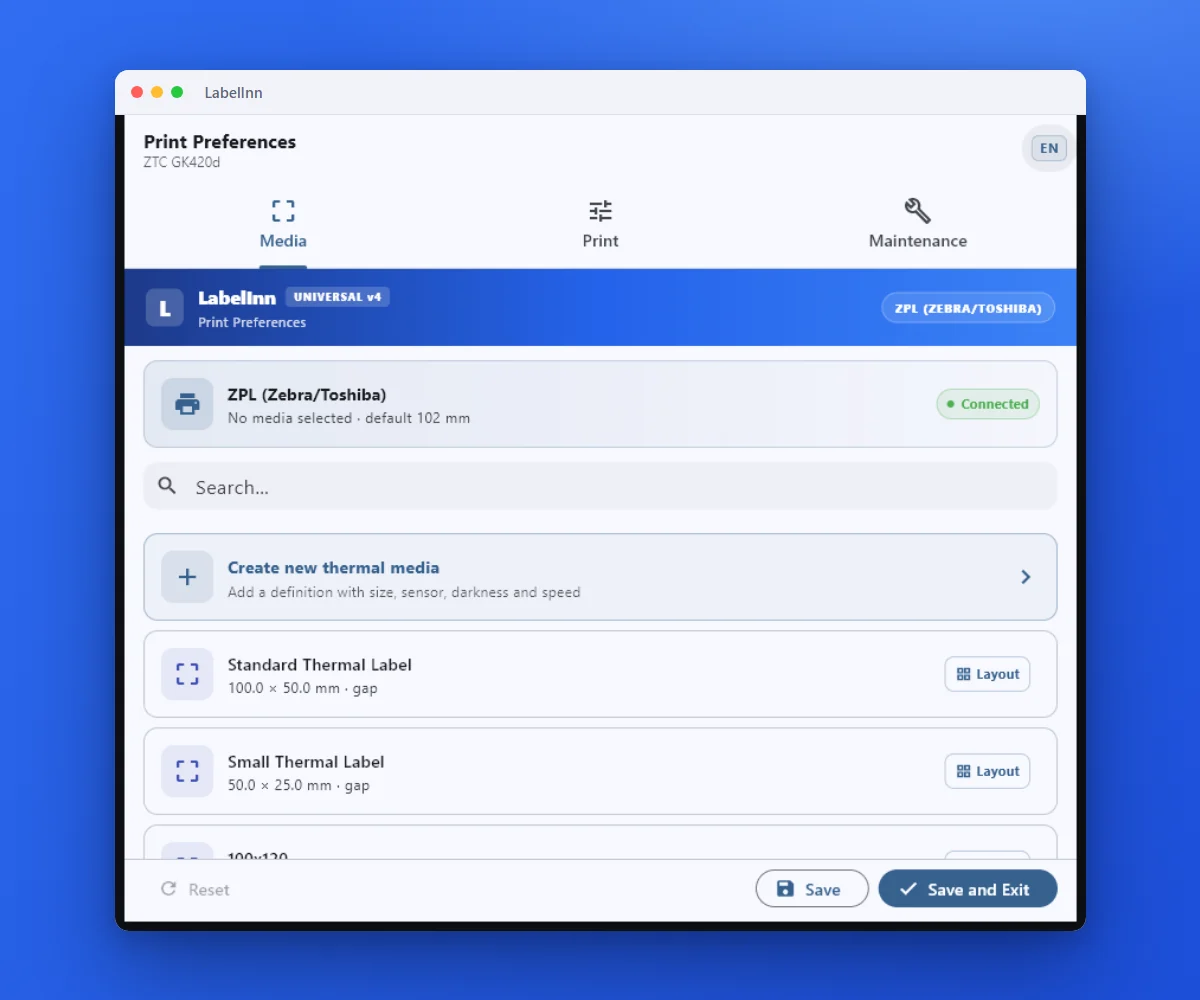 2Pick the label size in the driverOpen Preferences on the LabelInn printer and choose the media. Word, Chrome or any app then prints to that size.
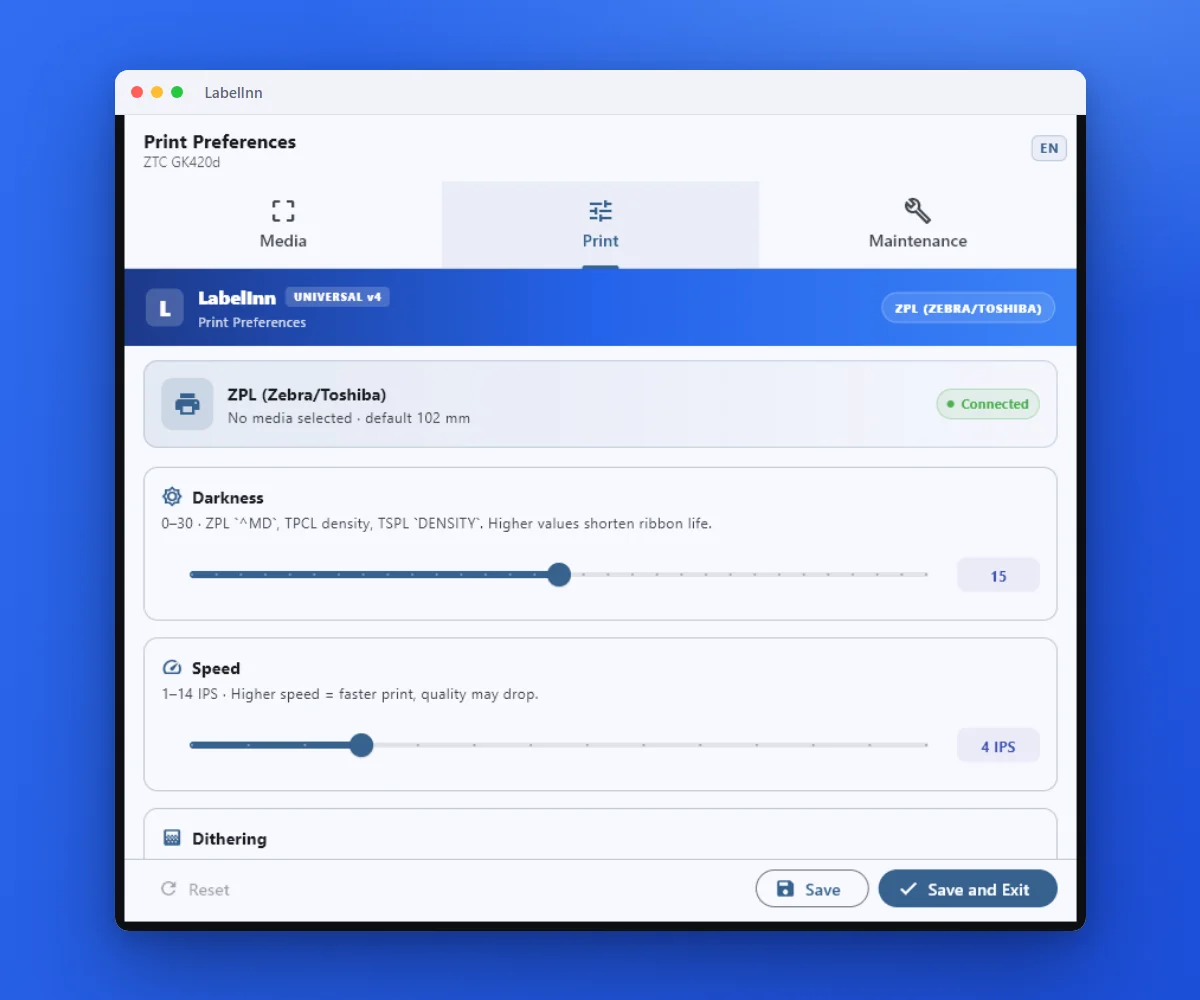 3Darkness, speed and sensor modeThe print settings live in the driver, so every application prints with the same result.
The fixOne set of preferences, applied to every job.Get LabelInn free
ANY PRINTER
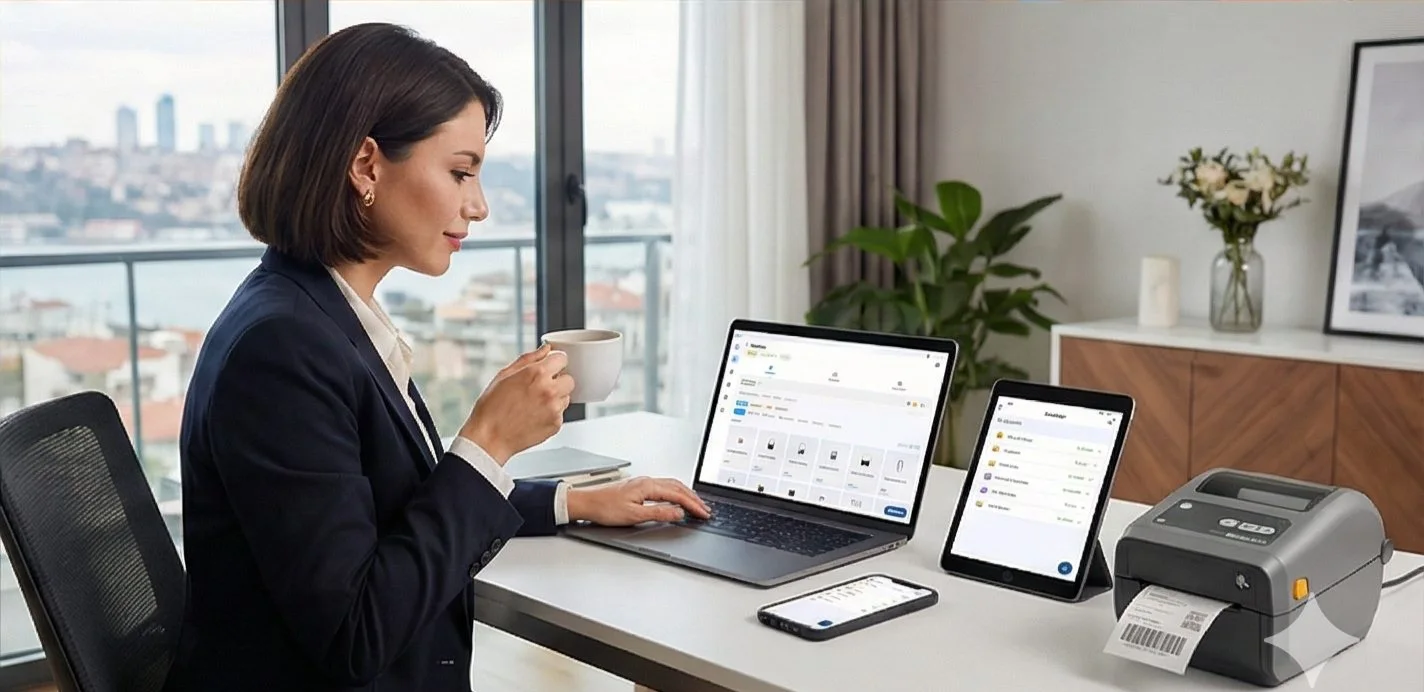
Design it, bind your data, print on the printer you already own.
Zebra, TSC, Toshiba, Epson and more — over USB, network or Bluetooth, with no driver to install.
PRICING
Start free. Pay when it earns its keep.
NEXT STEP / LABELINN
Print your first label today