FEBRUARY 7, 2026 / MACOS
How to Use Label Printer on macOS? No Driver Needed!
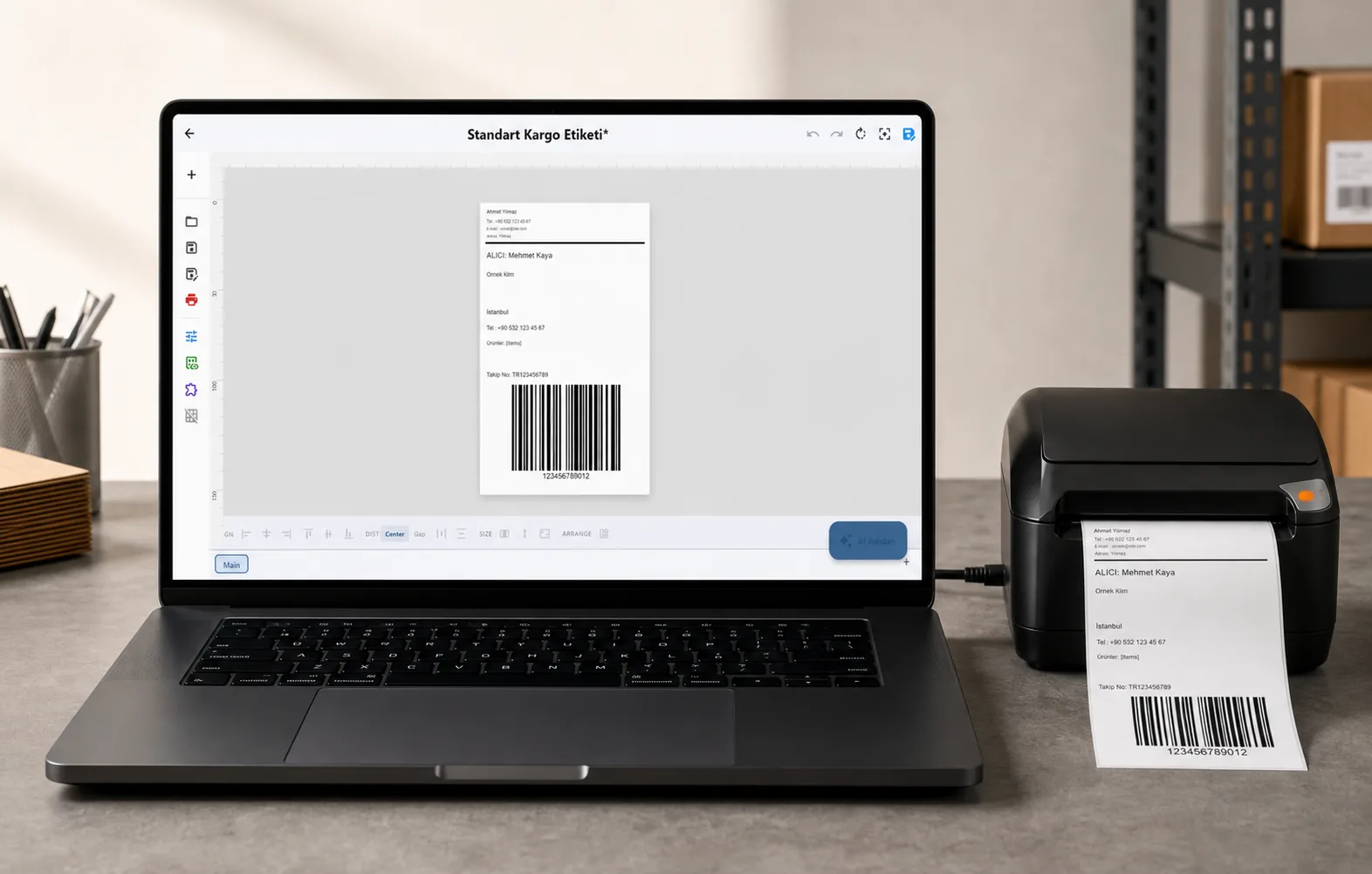
THE PROBLEM
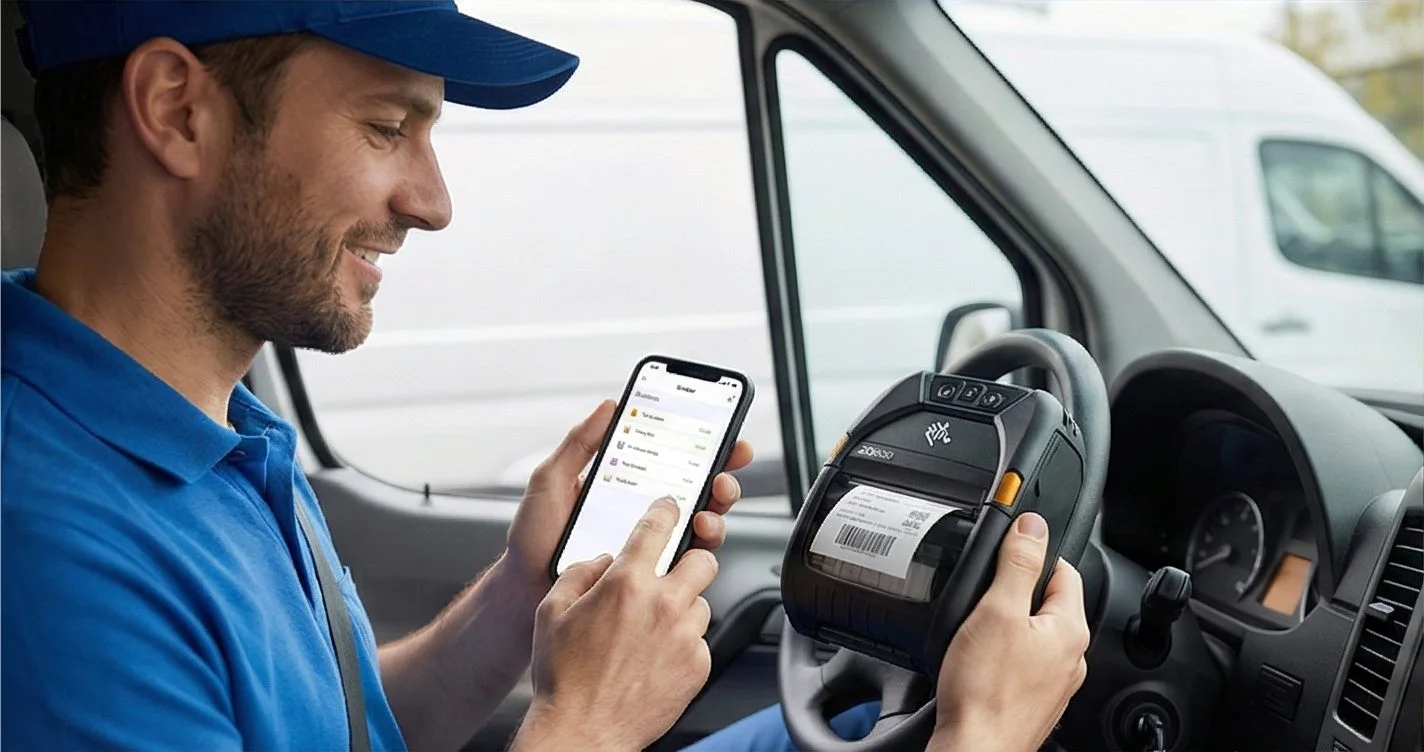
You're a Mac user and want to buy a label printer. Or maybe you already have one but can't get it to work on macOS. You search Google: "Zebra ZD220 macOS driver" no results. "TSC TE244 Mac driver" nothing again.
Because most thermal label printers don't have macOS drivers.
01
Why Is Label Printing on macOS So Difficult?
The Driver Problem
In the Windows world, printer manufacturers provide .exe driver files install and you're done. But on macOS, things are different:
| Brand | Windows Driver | macOS Driver |
|---|---|---|
| Zebra (ZD220, ZD421, ZT230) | ? Available | ? None (CUPS Generic supported) |
| TSC (TE244, TTP-244 Pro) | ? Available | ? None |
| Xprinter (XP-420B, XP-365B) | ? Available | ? None |
| Bixolon (SLP-TX400) | ? Available | Limited |
| Epson ColorWorks (C3500, C4000) | ? Available | Available but problematic |
CUPS Generic Printer A "Solution"?
You can add the printer as "Generic" using macOS's built-in CUPS system. But in practice:
- Label size can't be set correctly
- Low print quality (no DPI setting)
- Size resets with every print job
- Barcode print quality is insufficient shipping barcodes can't be scanned
- Constant "printer paused" error
"I can't print labels from my Mac will I have to buy a Windows computer?"
No. The solution is actually very simple.
Struggling with label printer drivers on macOS? LabelInn works driverless — sends ZPL commands directly to your Zebra, TSC, or Xprinter without any driver installation. Try free for 14 days →
02
The Solution: Driverless Printing with ZPL
What is ZPL (Zebra Programming Language)? It's a command language used for direct communication with thermal printers. It doesn't need a driver. It sends commands directly to the printer via USB.
How Does It Work?
^XA                          Label start
^FO50,50^A0N,40,40^FDHello^FS  Print "Hello"
^FO50,120^BY3^BCN,100,Y,N,N^FD123456^FS  Print barcode
^XZ                          Label end
These commands are sent directly to the printer via USB. macOS, Windows, Linux the operating system doesn't matter. The printer understands this command and prints.
ZPL Compatible Printers
ZPL doesn't only work with Zebra brand printers. Many brands support ZPL emulation:
| Brand/Model | ZPL Support | macOS (with LabelInn) |
|---|---|---|
| Zebra ZD220 / ZD421 / ZT230 | ? Native ZPL | ? Full support |
| TSC TE244 / TTP-244 Pro | ? ZPL emulation | ? Full support |
| Xprinter XP-420B / XP-365B | ? ZPL emulation | ? Full support |
| Bixolon SLP-TX400 | ? ZPL emulation | ? Full support |
| HPRT HT300 | ? ZPL emulation | ? Full support |
| Gainscha (various models) | ? ZPL emulation | ? Full support |
03
Special Note for Epson ColorWorks Users
If you're using Epson ColorWorks (C3500, C4000, C6000) and experiencing issues on macOS:
- Epson driver constantly has compatibility issues with macOS updates
- Print queue freezes reported with macOS Sonoma (14.x)
- Color profile settings don't produce the same results as on Windows
- Print speed is noticeably slower compared to Windows
ZPL is not used with the ColorWorks series (inkjet technology). However, LabelInn offers macOS native print optimization for ColorWorks, minimizing driver issues.
04
Windows vs macOS: Label Printing Comparison
| Windows | macOS (with Driver) | macOS (LabelInn ZPL) | |
|---|---|---|---|
| Setup | Download + install driver | CUPS Generic (limited) | Plug and play |
| Label size | Set from driver | Manual (every time) | Auto detection |
| Barcode quality | High | Low/medium | High (ZPL native) |
| Print speed | Fast | Slow | Fast |
| After OS update | Driver sometimes breaks | Frequent issues | Unaffected |
| Multiple printers | Driver for each one | Add Generic for each | Auto detection |
05
Printer Buying Guide for macOS Users
If you're a Mac user and buying a new printer, pay attention to these criteria:
06
macOS + TSC Printer, Zero Driver Detours
Here is the native LabelInn workflow for printing labels on macOS with a TSC thermal printer, with no Windows driver in the loop:
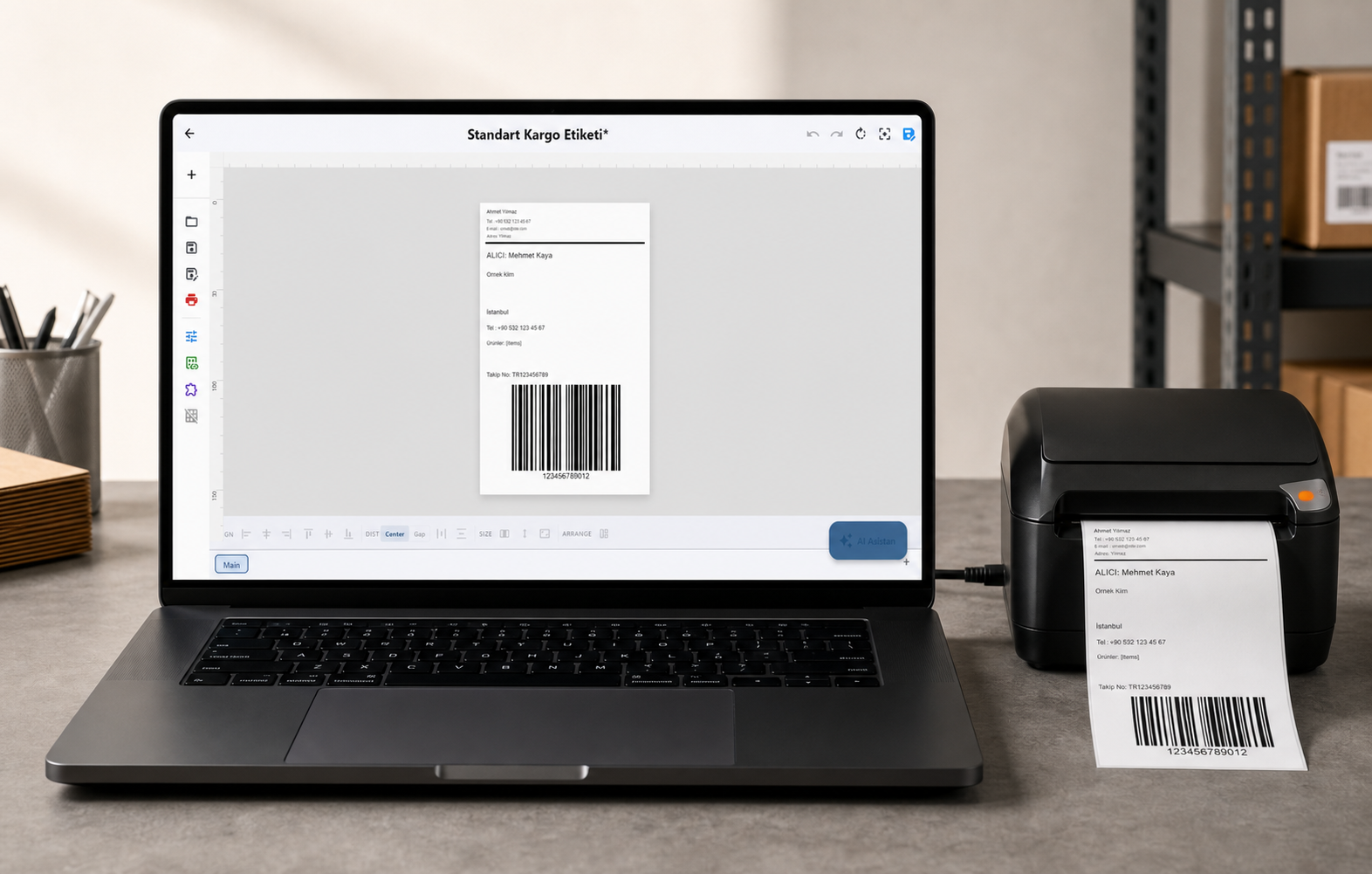
No virtual machine, no driver download, no terminal commands. Just LabelInn connecting directly to the printer and sending labels.
QUESTIONS / FAQ
Frequently Asked Questions
Does it work with MacBook Air M1/M2/M3?
Yes. LabelInn works flawlessly on Apple Silicon (M1, M2, M3, M4) and Intel Macs. macOS 12 (Monterey) and above is supported.
I have a USB-C port, the printer is USB-B. What do I need?
You can use a USB-B to USB-C adapter cable. Apple's own USB-C hub or third-party hubs also work.
Can I connect via Wi-Fi/Ethernet?
Yes. If your printer supports network connectivity, you can also connect via IP address. TCP/IP ZPL transmission is supported.
How do I know if my printer supports ZPL?
Look for "ZPL", "ZPL II" or "ZPL Compatible/Emulation" in your printer's user manual or technical specifications. Zebra brand printers natively support ZPL. Brands like TSC, Xprinter, and Bixolon offer ZPL emulation.
Can I print labels on macOS without LabelInn?
Technically you can send ZPL commands via terminal, but it's not practical for end users. LabelInn simplifies design and printing with a visual interface.
KEEP GOING
Related Articles
NEXT STEP / LABELINN
Label Printing from Mac Is Now Easy
Designed for Mac users. Free for 14 days. · macOS native application · No driver needed direct printing with ZPL · Works with all ZPL compatible printers