MARCH 13, 2026 / PRINTER ISSUES
Epson ColorWorks "Media Form Error" Fix Your Sensor Mode Is Wrong
Epson ColorWorks showing Media Form Error or spitting paper? Your sensor mode doesn't match your label type. Step-by-step fix for C3500, C4000, C6000 & C7500 media definition templates.

THE PROBLEM
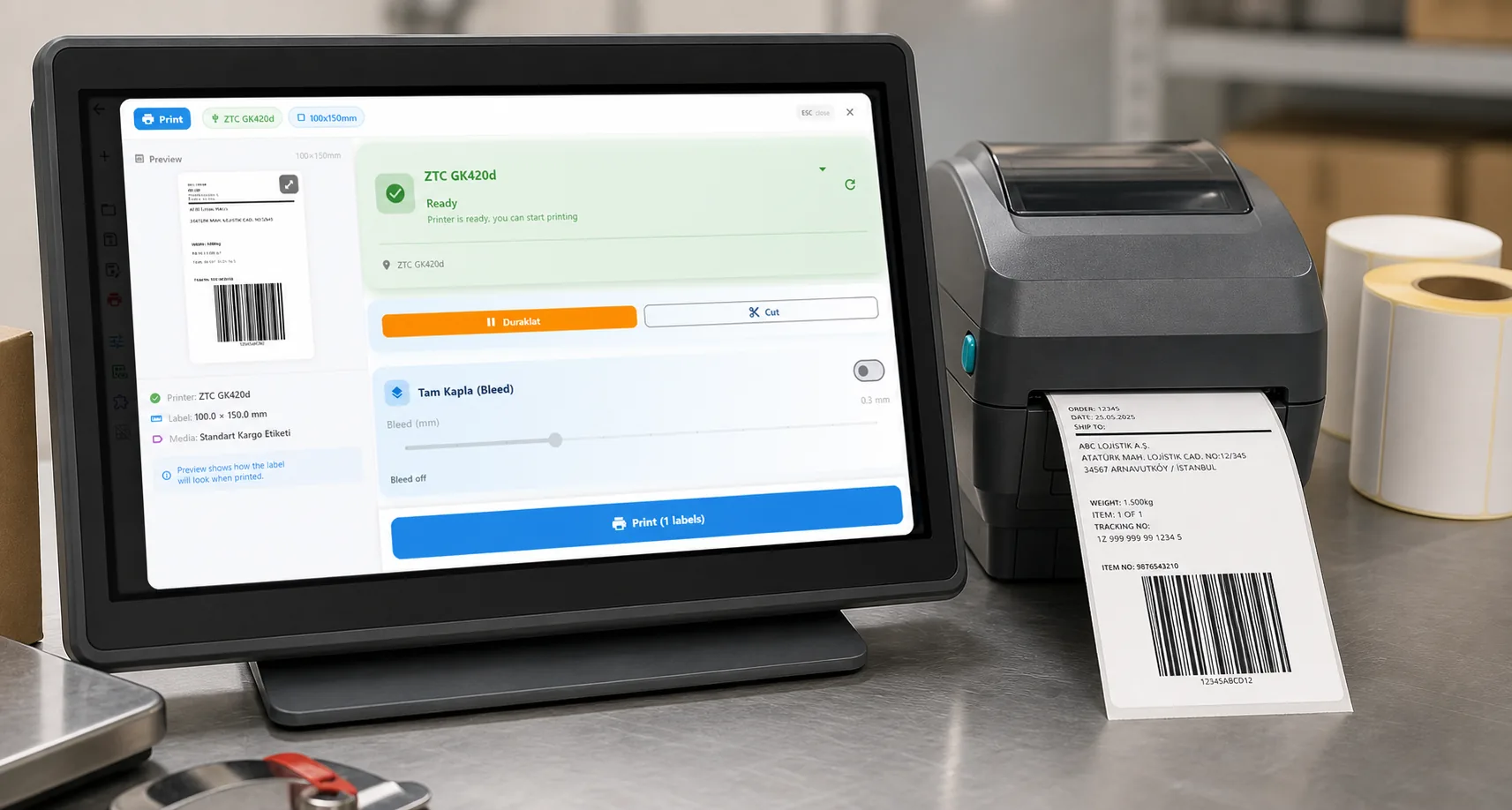
Your Epson ColorWorks printer — C3500, C4000, C6000, or C7500 — is doing one of these things: spitting out a meter of labels without printing, showing a "Media Form Error" or "Media Type Error" on the display, or the status light is flashing red. You've loaded the labels correctly, the ink is fine, but the printer simply refuses to cooperate.
The root cause is almost always the same: the printer's media detection sensor is set to look for something that doesn't exist on your label roll. If the printer is expecting die-cut gaps but you've loaded continuous labels, it will keep feeding paper looking for a gap — and when it doesn't find one, it throws the error.
Tired of media definition errors every time you switch labels? LabelInn sends the correct media type directly to your Epson printer — no driver templates, no sensor errors. Try free for 14 days →
01
How Epson ColorWorks Media Detection Works
Unlike basic thermal printers that can sometimes auto-detect label types, Epson ColorWorks printers require you to explicitly tell them what kind of media you've loaded. The printer has sensors that detect label boundaries, but these sensors only work correctly when the printer knows what to look for.
There are three media detection modes:
| Detection Mode | How It Works | Label Type | What the Sensor Looks For |
|---|---|---|---|
| Die-Cut (Gap) | Transmissive sensor detects gap between labels | Pre-cut labels on a backing sheet with visible gaps | A transparent gap between opaque labels |
| Black Mark | Reflective sensor detects black line on label back | Labels with a printed black mark on the backing | A black line on the back of the media |
| Continuous | No detection — prints by length only | Uncut continuous roll, receipt-style media | Nothing — feeds by specified length |
02
Scenario 1: Continuous Labels on a Die-Cut Setting (Most Common)
This is by far the most common scenario, especially for new Epson ColorWorks users:
- You load a continuous label roll into a brand-new printer (or one that was previously used with die-cut labels)
- You hit print or unpause the printer
- The printer feeds about 1 meter of paper without stopping
- The display shows "Media Form Error" or "Media Definition Error"
Why? Brand-new Epson printers typically default to Die-Cut (gap detection) mode. The sensor keeps searching for a gap between labels, can't find one on your continuous roll, and eventually gives up with an error.
The fix is simple: change the media definition template to Continuous before unpausing or printing.
03
Scenario 2: Wrong Label Type After Switching Rolls
You were printing fine with die-cut labels, then switched to a different label type (continuous or black mark) and suddenly get the error. The printer still has the old media definition loaded — it doesn't automatically detect what kind of labels you've loaded.
04
How to Fix: Change Media Definition on Epson C3500
05
How to Fix: Change Media Definition on Epson C7500
The C7500 driver interface is slightly different but the concept is identical:
06
After Changing: Reset the Printer to Ready
Changing the media definition on the computer isn't enough — you need to clear the printer's current state so it picks up the new settings:
07
Prevention: Why This Keeps Happening
Here's the frustrating part: the Epson Windows driver can only send media type configuration as part of a print job. You can't send a standalone "change sensor mode" command through the driver. This means:
- You change the media definition template in the driver
- The printer doesn't know about it yet — it still has the old settings
- You send a print job — the new settings are embedded in the print data
- If the first print fails because the old settings are still active, you get the error before the new settings take effect
This is a fundamental limitation of the Epson Windows driver: media configuration only travels with print data, not as a separate command.
QUESTIONS / FAQ
Frequently Asked Questions
What's the difference between "Media Form Error" and "Media Type Error" on Epson?
They're essentially the same error with slightly different names across firmware versions. Both mean the printer's sensor detection mode doesn't match the loaded media. "Media Form Error" is more common on C3500/C4000, while "Media Type Error" appears more on C7500 series.
Can I use continuous labels on the Epson C3500?
Yes. The C3500 supports continuous, die-cut, and black mark media. You just need to set the correct media definition template in the driver (or let LabelInn handle it automatically).
Why does my Epson printer spit out a meter of paper when I unpause it?
The printer is in Die-Cut (gap detection) mode but you've loaded continuous labels. It keeps feeding paper looking for a gap between labels, can't find one, and feeds until it gives up (usually about 1 meter). Change the media definition to Continuous before unpausing.
Does LabelInn work with all Epson ColorWorks models?
Yes. LabelInn supports the C3500, C4000, C6000, and C7500 series. It communicates directly with the printer without relying on the Windows driver, so media type configuration is always correct.
I changed the media definition but still get the error. What now?
Make sure you pressed Cancel → Delete All Formats → Pause to clear the old state. If the error persists, check that your label dimensions are also correct — Epson ColorWorks has 1mm precision tolerance. See our Media Size Error fix guide.
KEEP GOING
Related Articles
NEXT STEP / LABELINN
Stop Fighting Media Definition Errors. LabelInn Handles It Automatically.
LabelInn configures your Epson ColorWorks media settings automatically. Switch between continuous, die-cut, and black mark labels without touching the driver. Works on Windows, macOS, iOS, and Android. · Auto-sends correct media type to Epson · No driver templates to create or manage · Switch label types instantly — no error, no reset