Free WiFi QR Code Generator
Let guests join your network by scanning — no typing the password. Enter your WiFi name and password below, download the QR code as PNG or SVG, and print it on a table tent, card or label. Free, no signup, and nothing is uploaded.
WiFi QR code settings
Format: WIFI:T:WPA;S:NetworkName;P:Password;; — replace NetworkName and Password. Use T:nopass for an open network, and add H:true; for a hidden SSID.
#000000
#FFFFFF
Preview
The free LabelInn app places your WiFi QR code on a real card or label with your logo and a "Scan to connect" line, then prints directly to Zebra, TSC, Brother and Bixolon thermal printers — perfect for cafes, Airbnbs and reception desks.
01
What a WiFi QR code is — and why it beats sticking the password on the wall
A WiFi QR code is a QR code that stores your network name and password so a guest can join your WiFi just by pointing their phone camera at it — no reading a long password off a sticky note, no typos, no "is that a zero or an O?". This generator builds the code entirely in your browser using the full bwip-js engine, so your SSID and password are never uploaded anywhere, and the result is a static code that never expires and needs no account or monthly fee. Enter your details, download the PNG or SVG, and print it wherever guests sit.
It is a small upgrade that pays off every day in cafes, restaurants, offices, Airbnbs, clinics, salons and event spaces: fewer "what's the WiFi?" interruptions, and a cleaner guest experience than a whiteboard scrawl.
02
The WiFi QR payload format, field by field
Under the hood a WiFi QR code is just a short piece of structured text. Scanners recognise it because it starts with WIFI: and lists semicolon-separated fields:
| Field | Meaning | Example / values |
|---|---|---|
T: | Encryption / security type | WPA (covers WPA, WPA2, WPA3), WEP, or nopass |
S: | SSID — your exact network name | CafeGuest |
P: | Password (omit for an open network) | Coffee2026 |
H: | Hidden network flag (optional) | true if the SSID is not broadcast |
;; | Two semicolons close the string | Always end with ;; |
The SSID and password are case-sensitive and must match your router exactly. If your name or password contains a special character — a semicolon ;, comma ,, colon :, backslash \ or double quote " — put a backslash in front of it, for example P:Pa\;ss\,word;;. Field order is not fixed by the format, so S: and T: may appear in either order; the example above uses the most widely recommended layout.
03
How to generate your WiFi QR code
- In the WiFi data box, replace
NetworkNamewith your exact SSID andPasswordwith your WiFi password, keeping theWIFI:T:WPA;S:...;P:...;;structure. - For an open network with no password, use
WIFI:T:nopass;S:NetworkName;;and delete theP:part. - For a hidden network, add
H:true;before the final;;. - Leave error correction on Medium (M), or raise it to H if you will drop a small logo in the middle or print on rough media.
- Download as PNG, SVG or PDF and test-scan it with your own phone before you print a batch.
04
WPA vs WEP vs open — which encryption type to pick
- WPA — use this for virtually every modern router. The single value
WPAworks for WPA, WPA2 and WPA3 networks. - WEP — only for very old equipment that still runs the legacy WEP standard. Avoid it for new setups; WEP is not considered secure.
- nopass — for a genuinely open network with no password at all. Skip the
P:field entirely.
05
Hidden networks and special characters
If your access point does not broadcast its name (a "hidden" SSID), a plain WiFi QR code may fail to connect on some phones because they don't know the network exists. Add H:true; so the scanner is told to look for a hidden network, e.g. WIFI:T:WPA;S:BackOffice;P:secret123;H:true;;. Remember that any special character inside the SSID or password must be escaped with a backslash, as described above — this is the single most common reason a scanned code "does nothing".
06
Will it work on iPhone and Android?
Yes on both. On iPhone (iOS 11 and later) and on modern Android phones you just open the built-in camera app and point it at the code — a "Join <network>" notification appears, and one tap connects. There is nothing to install. Android additionally lets you share your saved WiFi as a QR code from the network settings, but that only helps people already standing next to you; a printed code from this generator works for anyone, any time.
07
Where to put it — table tents, cards and labels
The image download is perfect for a poster or a printed sign, but for a durable, professional result you'll usually want the code on a small card or sticker. Common placements:
- Cafes and restaurants — a table-tent or a sticker on each table, so nobody has to flag down staff.
- Airbnb and short-stay rentals — a framed welcome card by the router or on the fridge.
- Offices and co-working — a "Guest WiFi" card at reception and in meeting rooms.
- Clinics, salons and waiting rooms — a small sign so patients and clients connect while they wait.
08
How to print the WiFi QR code on a label with LabelInn
Downloading the raw QR image is fine for a screen or a sticker sheet, but if you want it on a real card or label — with your logo and a "Scan to connect" line — the free LabelInn app places the QR code on a full label alongside text and graphics, then prints directly to Zebra, TSC, Brother, Bixolon and other thermal printers over USB, network or Bluetooth. LabelInn is cross-platform (Windows, macOS, Linux, iOS, Android and web) and uses driverless native printer languages, so there's no driver hunting. You can even design the guest card once and reprint it any time you rotate the password.
09
Embed this WiFi QR code generator on your site
Free to embed — just keep the attribution link. Great for hospitality help pages, property-manager portals and IT knowledge bases.
Need a QR code for a URL, vCard or plain text instead? Use the dedicated QR code generator. Need a different symbology like Code 128 or EAN-13? Try the full barcode generator, or design a whole card with the free label maker.
THE PROBLEM, THEN THE FIX
WiFi QR Code: it looks right on screen, so why will it not scan?
A code that is slightly too small, too tight or the wrong type is the usual reason a scanner refuses it.
The problemThe code is drawn at a size that suits the screen, not the scanner.
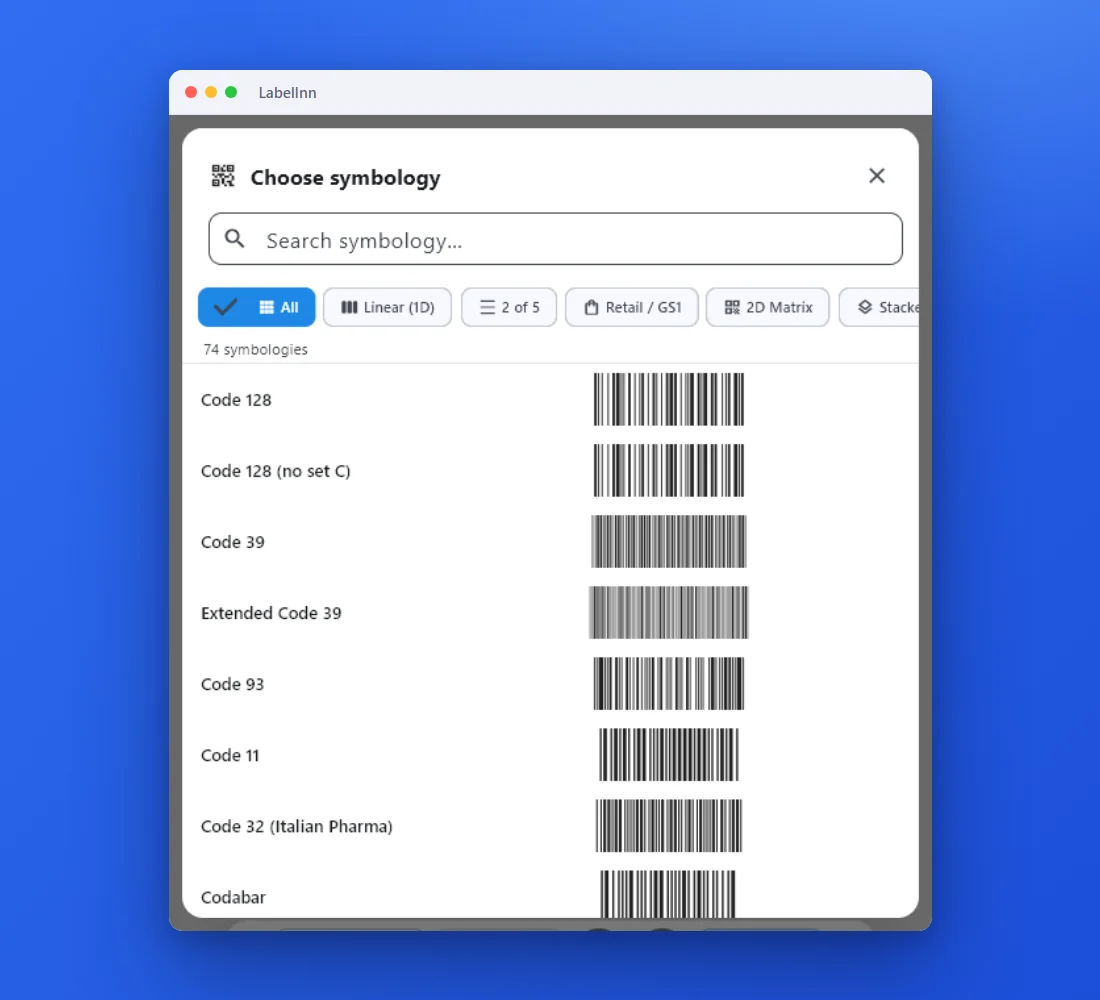 1Choose from 74 symbologiesEvery entry shows a live preview, so you pick the code by sight instead of by name.
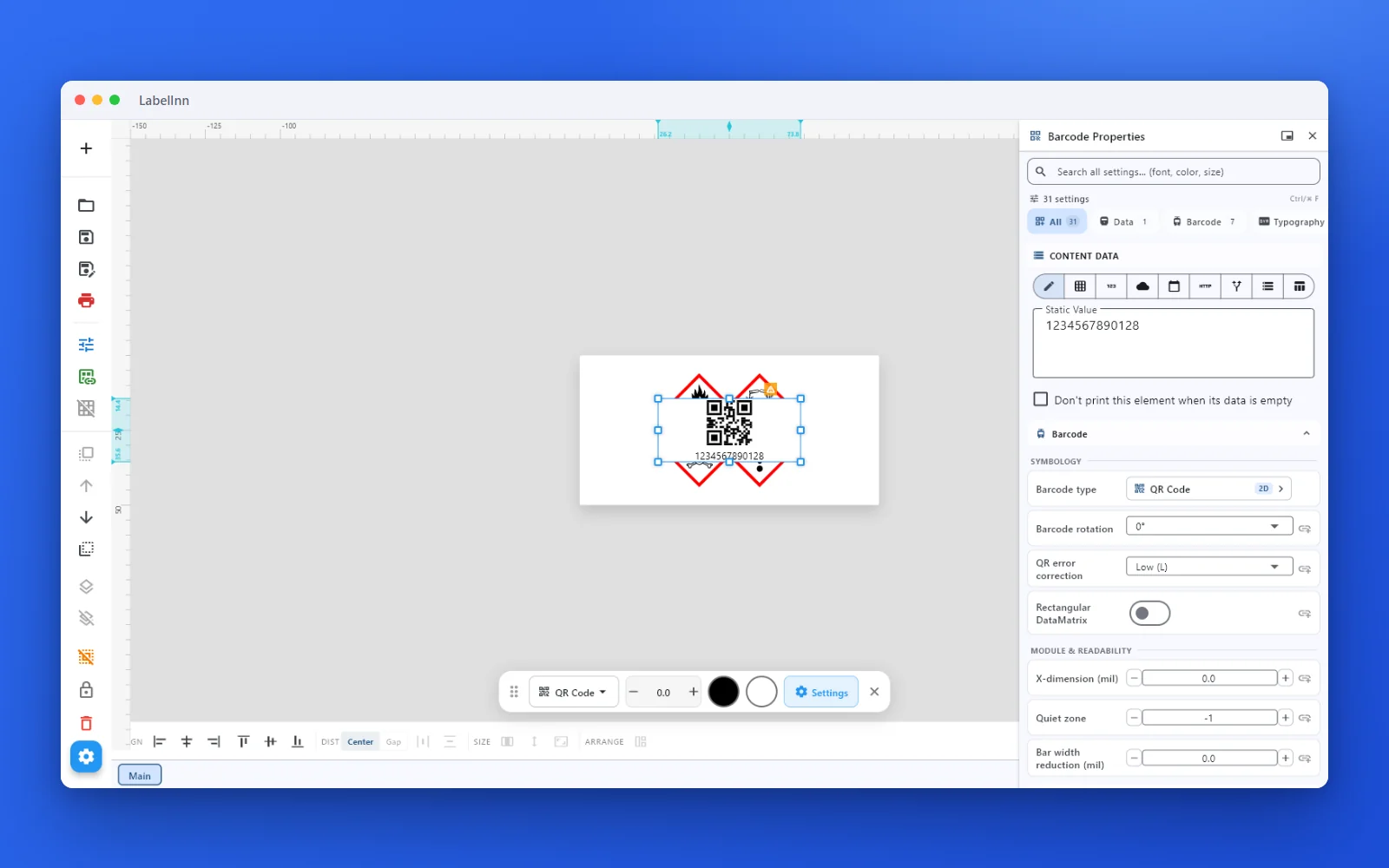 2Set the data and the readability rulesStatic value, spreadsheet column, database field or counter, plus X-dimension and quiet zone.
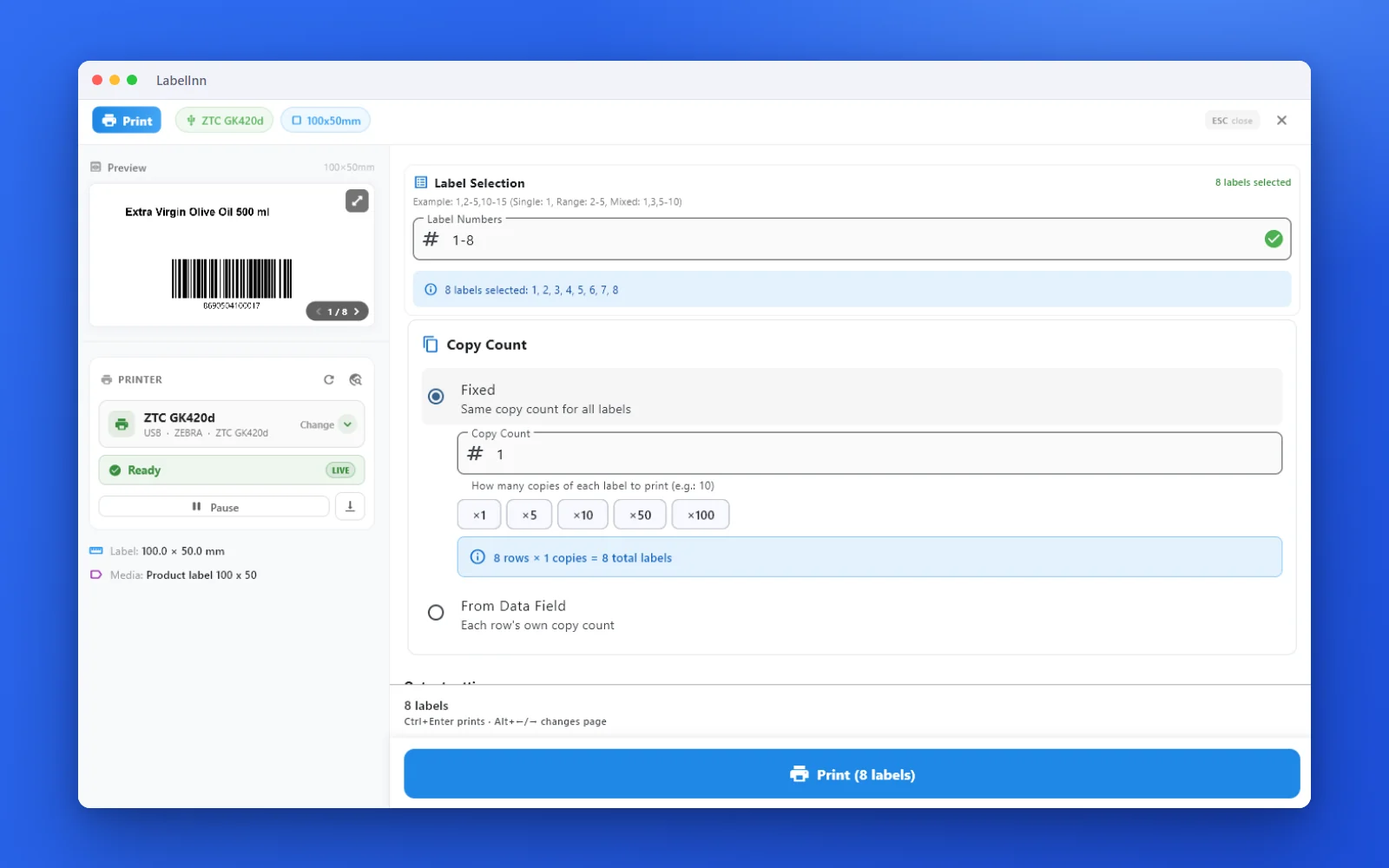 3Preview, then printCheck the real label, choose the printer and the number of copies, and print.
The fixPick the symbology from a preview list, set the module width and quiet zone, and check the real label before you print.Get LabelInn free
QUESTIONS / FAQ
Frequently asked questions
How do I make a WiFi QR code?
Enter WIFI:T:WPA;S:YourNetwork;P:YourPassword;; with your exact network name and password, then download the QR code. Anyone who scans it with a phone camera joins your WiFi without typing the password.
Is this WiFi QR code generator free?
Yes — no signup, no watermark, no scan limits. It runs in your browser, so your network name and password are never uploaded anywhere.
Does the WiFi QR code expire?
No. It's a static code with the details encoded directly in the pattern, so it never expires. It only stops working if you change the WiFi password — then generate a fresh one.
WPA or WEP — which should I pick?
Use WPA for almost every modern router (it also covers WPA2 and WPA3). Choose WEP only for very old gear, and nopass for an open network.
Does it work on iPhone and Android?
Yes. iOS 11+ and modern Android read WiFi QR codes with the built-in camera — point, then tap the pop-up to join. No scanner app needed.
How do I print it on a table tent or label?
Download the image and print it, or use the free LabelInn app to place the code on a full card or label with your logo and print directly to Zebra, TSC and more.