Trigger — an event enters the graph: an incoming API job, a marketplace order, or an ERP/database record. The record carries the data the rest of the workflow acts on.
VISUAL WORKFLOW ENGINE / CLOUD + ON-PREM EDGE / AUTOMATION
Turn an ERP, Marketplace, or API Event Into a Printed Label Visually
Turn an ERP, marketplace, or API event into a printed label — visually. LabelInn's node-graph workflow engine: Router → Design → operator Print Dialog → Print, on cloud or on-prem edge runtimes. POST /v1/print/jobs triggers whole workflows server-side.
FREE PLAN · NO CREDIT CARD · WINDOWS / MAC / LINUX / WEB
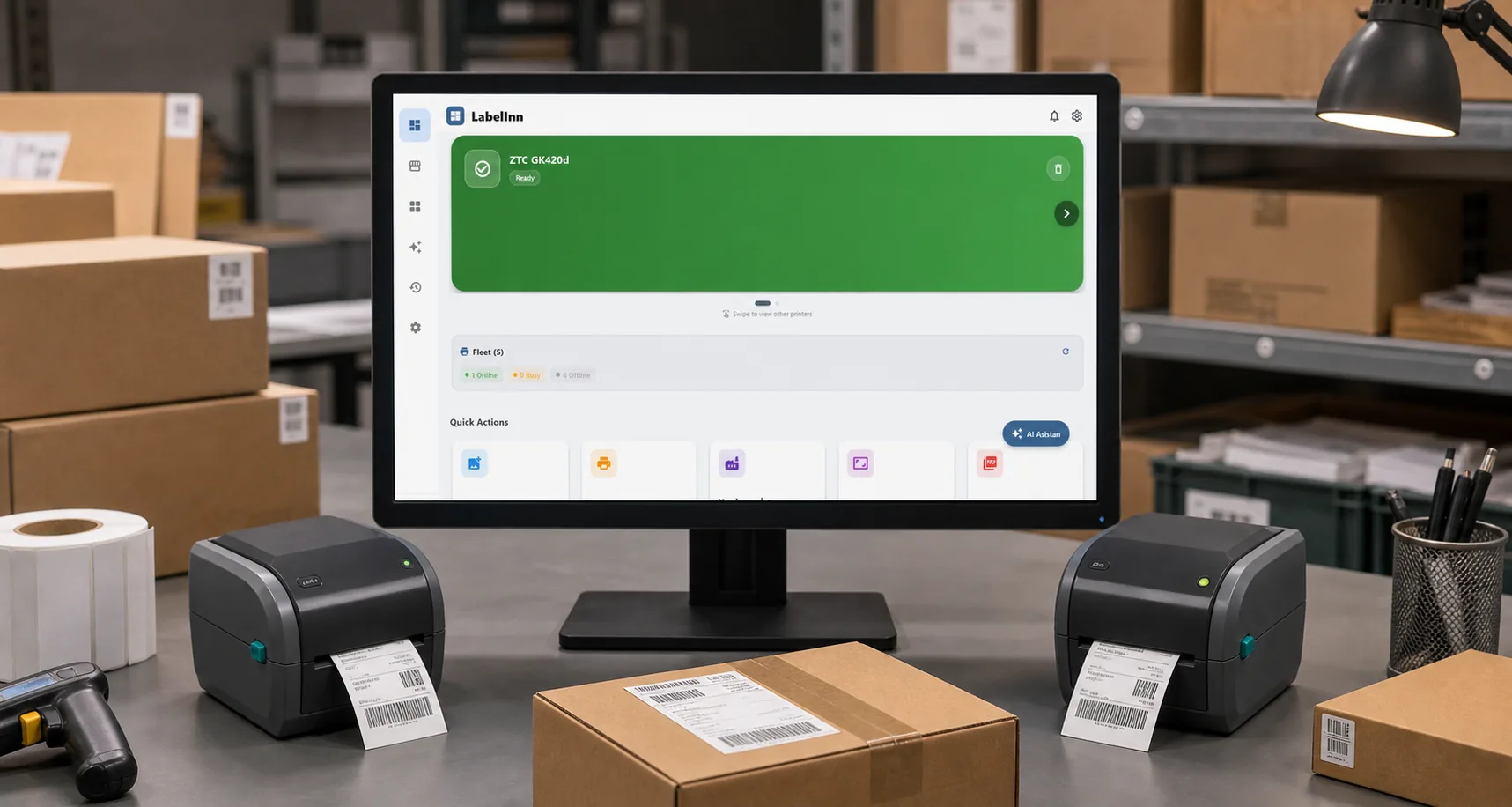
Native printer languagesZPL, TSPL, TPCL, ESC/Label
No driver to installUSB, network or Bluetooth
Every platformWindows, macOS, Android, web
Free to startNo credit card, 14-day Pro trial
THE PROBLEM
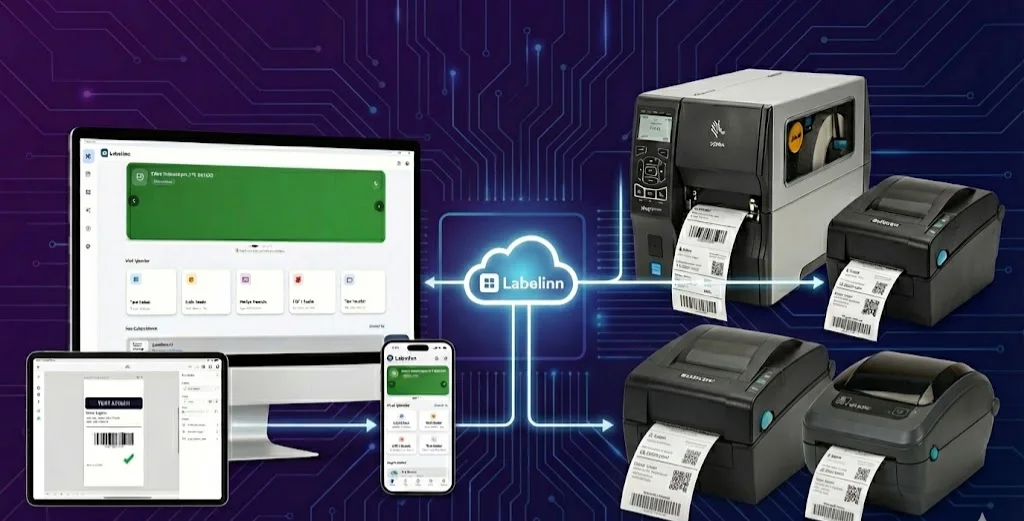
Most label automation is glued together with scripts: a webhook fires, some code looks up a record, picks a template, hands bytes to a printer, and hopes nothing changed. LabelInn replaces that brittle glue with a visual node graph you can see, reason about, and hand to an operator.
Drag in the nodes. Wire an incoming event to the right design. Drop an operator checkpoint in the middle when a human needs to confirm. End at a printer. The same graph runs in the cloud or on an on-prem edge runtime — and a single API call can drive the whole thing.
Event in, label out — visually. Build a workflow that turns an order, an ERP record, or an API call into a printed label. Start free →
TRY IT
Send an order through the graph.
A record enters at the Trigger, the Router reads its fields and picks the design, the operator confirms in the Print Dialog, and only then does it reach the printer. Same graph, different order, different label.
This demo needs JavaScript: three orders routed through a workflow graph.
01
The Node Graph: Router → Design → Print Dialog → Print
A LabelInn workflow is a graph of nodes. One record travels along each cable, and each node decides what happens next. (Every node is described on the workflow node reference.) The core path looks like this:
Router — inspects the record and routes it. The Router is what decides which design a record should print on, based on its fields — product type, country, hazard class, customer, whatever you wire up.
Design selection — the chosen Design node fills with the record's data as it arrives, producing the actual label artwork (text, barcodes, QR, shapes, images).
Print Dialog (operator checkpoint) — an optional human-in-the-loop stop. The operator sees a rich preview, confirms quantity and values, and presses print. Skip it for fully unattended runs, or insert it exactly where a person must sign off.
Print — the Print node sends the job to a real printer through LabelInn's command facade (ZPL, TSPL, Toshiba TPCL, Epson ESC/Label) over USB, TCP/IP 9100, or Bluetooth.
02
The Operator Print Dialog: a Human Checkpoint You Can Shape
Full automation is great until a person actually needs to look at the label before 5,000 of them come off the printer. The Print Dialog node is that checkpoint — and it's customizable, not a fixed popup.
Section toggles — show or hide parts of the dialog so operators only see what matters for that job.
Pinned values — lock fields that must not change between prints, and let operators edit only the ones that should.
Database lookups — pull live values into the dialog at print time from a wired data source.
LOT → design swap — when a value like a LOT or batch number comes in, the dialog automatically swaps to the matching design. The right artwork is selected at print time, with no workflow rebuild.
Automation with a human in the loop. Put an operator checkpoint exactly where sign-off is required — and full speed everywhere else.
COPIES AND NUMBERS
Different labels, identical copies, and numbers that never repeat by accident
Each record can print several different labels and several identical copies of each. A counter on the label moves only between different labels, so the two stickers for one box carry the same number and the next box gets the next one. The node lists the labels it will print before anything runs.
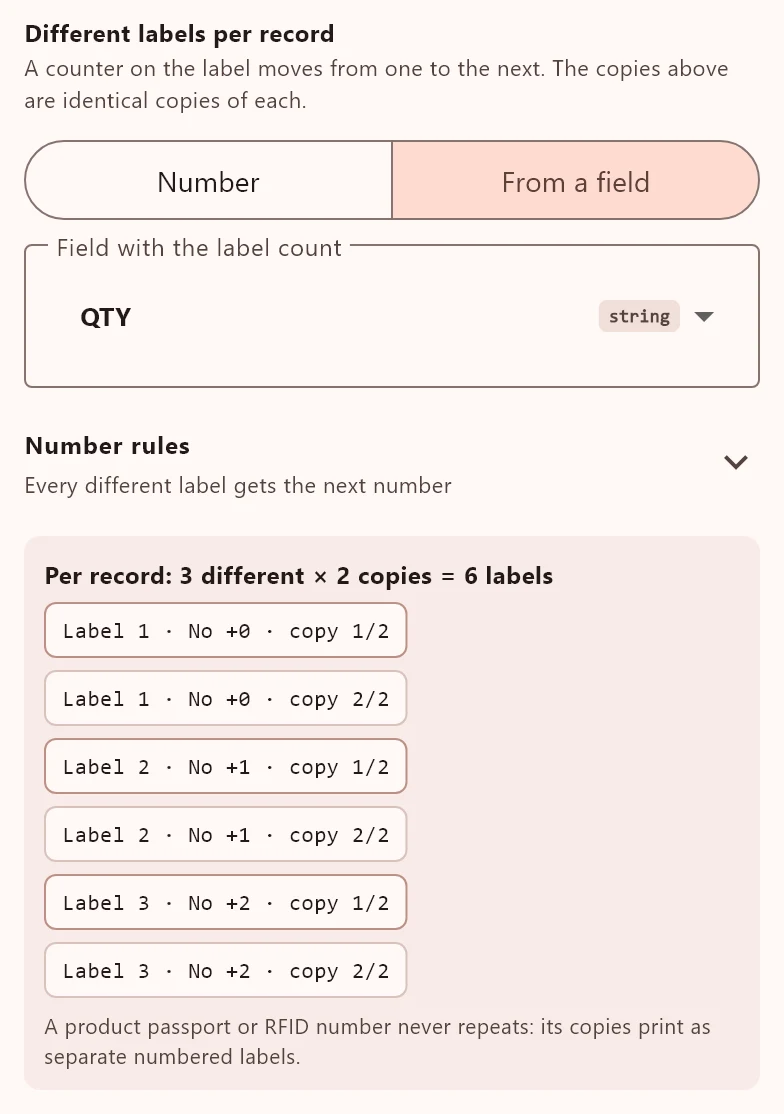 1Different labels per recordA number, or a field such as QTY. The copies set above stay identical. The preview lists every label: which one, which number, which copy.
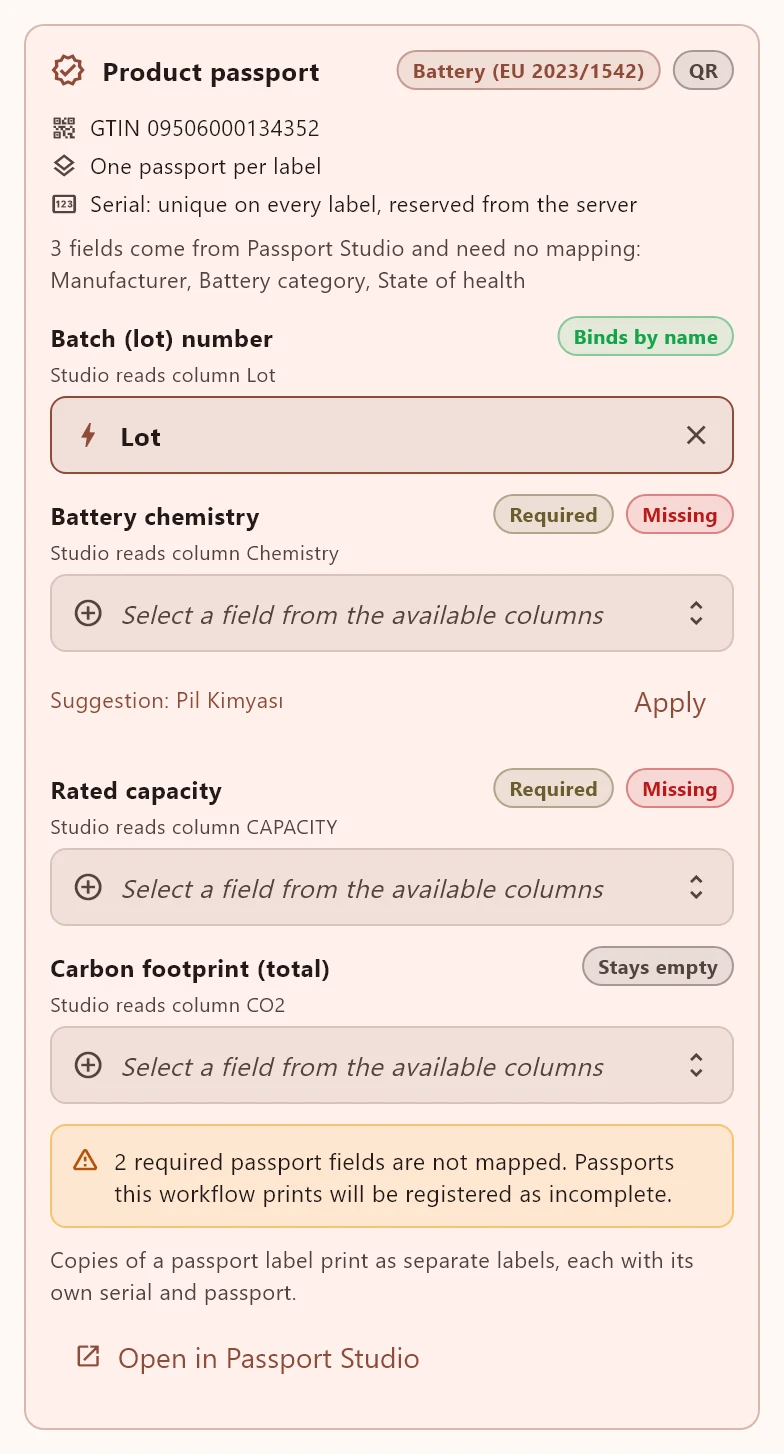 2Product passport fields, by nameRequired fields are flagged, a likely incoming field is suggested, and the fields Passport Studio fills itself need no mapping. A passport or RFID number never repeats: its copies print as separate numbered labels.
COPIES AND NUMBERSArrives with the next LabelInn app update.
03
Cloud Runtime AND On-Prem Edge Runtime
The same workflow you design runs in two places, so you're never forced to choose between convenience and resilience.
| Capability | Cloud runtime | On-prem edge runtime |
|---|---|---|
| Triggered by REST API / webhooks | ✓ Yes | ✓ Yes |
| Runs the same node graph | ✓ Yes | ✓ Yes |
| Works offline | ✗ Needs connectivity | ✓ Offline-capable |
| LAN printing | Via online listening device | ✓ Local HTTP, sub-100ms, LAN mesh |
| Operator Print Dialog checkpoint | ✓ Yes | ✓ Yes |
Run it in the cloud when you want zero infrastructure. Run it on the edge when you need labels to keep printing through an internet outage, or when sub-100ms LAN response matters on the production floor.
04
One API Call Can Trigger the Whole Workflow
You don't have to drive each node by hand. A single request to the canonical print endpoint can kick off an entire workflow server-side:
POST https://labelinn.com/v1/print/jobs — the incoming payload enters the graph and flows through Router → Design → Print automatically. One call, the complete event-to-label path.
Idempotency keys — safely retry without printing duplicates.
Scheduled, batch & reprint — queue jobs for later, send batches, and retry or reprint with audit-grade raw-payload capture.
Webhooks — get notified as jobs move through the workflow.
Scoped API keys & OAuth2 — sk_live_ / sk_test_ keys (hashed, scoped, rate-limited) plus OAuth2 PKCE "Sign in with LabelInn".
Trigger workflows from your stack. SDKs + OpenAPI, idempotent jobs, webhooks. Read the developer docs →
05
The Linter: Catch Broken Workflows Before They Print
A graph that looks right can still be wrong — a Print node with no printer, a Router branch that selects no design, a dangling cable. LabelInn's workflow linter checks the graph and surfaces those problems while you build, instead of letting a silent no-op slip into production. You ship a workflow that actually prints, not one that quietly does nothing.
06
Connect It to the Systems You Already Run
Workflows are most useful when the trigger comes straight from your existing tools. LabelInn meets the data where it lives:
Marketplaces (13 wired) — ikas, Trendyol, Hepsiburada, Shopify, WooCommerce, Amazon, N11, ÇiçekSepeti, Etsy, Shopier, IdeaSoft, Ticimax, PttAVM.
Shipping connections — import an authorized REST, OpenAPI, or cURL contract; map shipment, tracking, barcode, and label fields; then test before enabling writes.
No-code connectors — Make.com app (14 modules + 6 webhook triggers) and Zapier app (13 actions, 9 searches, 10 triggers), available by direct import.
Read-only database connectors — Oracle, Microsoft SQL Server, PostgreSQL, and MySQL/MariaDB through an on-prem sidecar; credentials never leave the machine.
Any ERP or SAP system can POST to the REST API to start a workflow — no custom middleware required. Browse integrations →
07
Where This Fits vs. Traditional Label Software
BarTender's Automation tier and NiceLabel/Loftware can drive printers from upstream systems too — they're mature, Windows-centric, and priced per printer or by quote. LabelInn's difference is that the automation is a visual, programmable node graph with an operator checkpoint built in, it runs on cloud and offline edge runtimes, and the REST API, MCP, and compliance features are bundled rather than reserved for the top tier. It's truly cross-platform, and a single API call can trigger the whole flow.
THE PROBLEM, THEN THE FIX
Why does a job that repeats every day still depend on a person?
Open the file, check the rows, print, repeat. The steps are always the same, so they can be drawn once.
The problemA daily print run lives in someone’s head and in a folder of files.
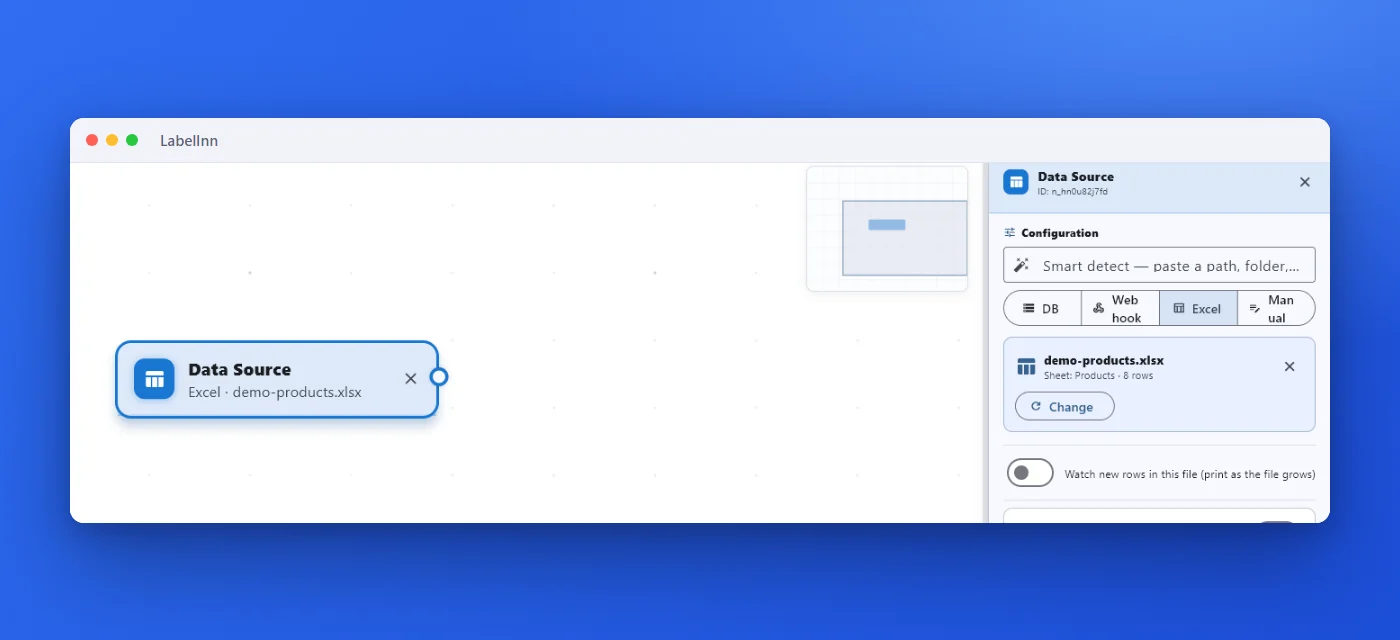 1Start from your dataChoose Excel, a database, a webhook or a manual entry. The node reports the file, the sheet and the number of rows.
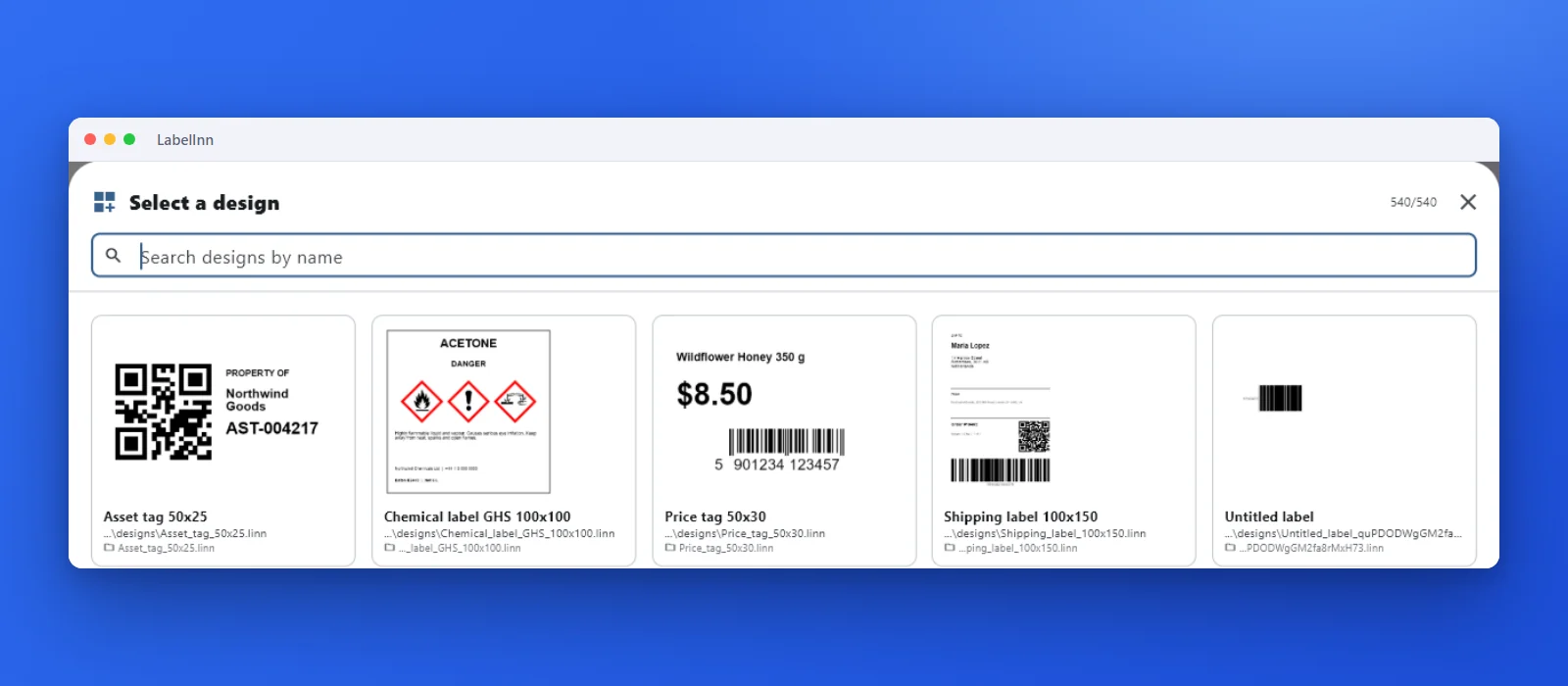 2Pick the labelChoose the design from your library and see a preview of it.
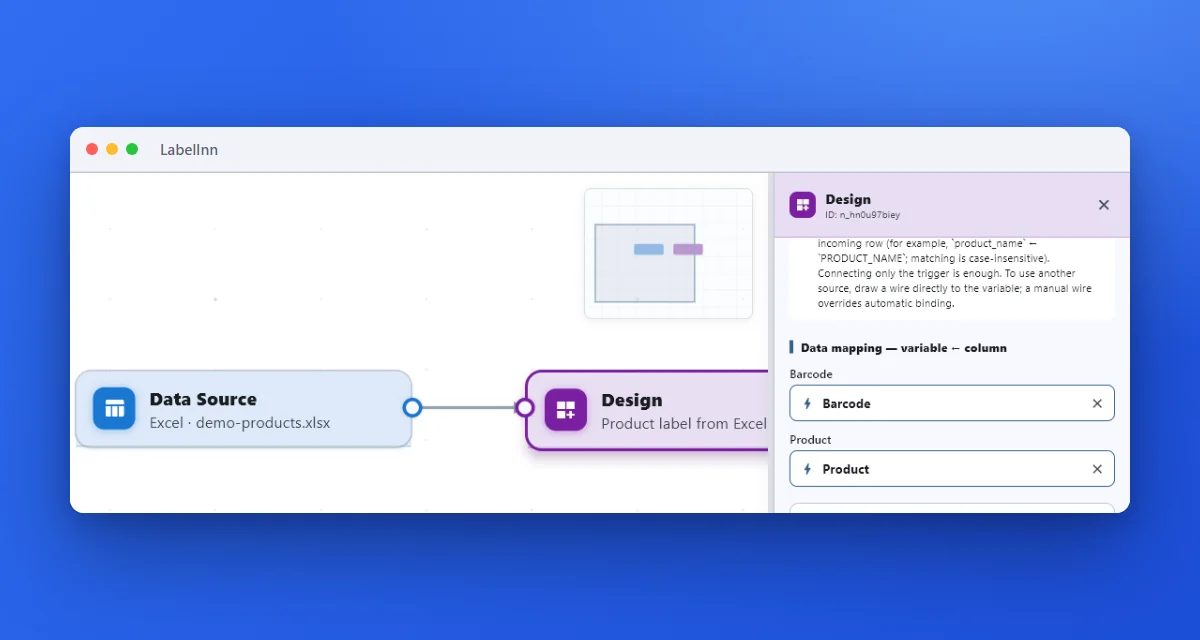 3Columns fill fields by nameEvery design variable is filled from the column with the same name, so there is nothing to wire field by field.
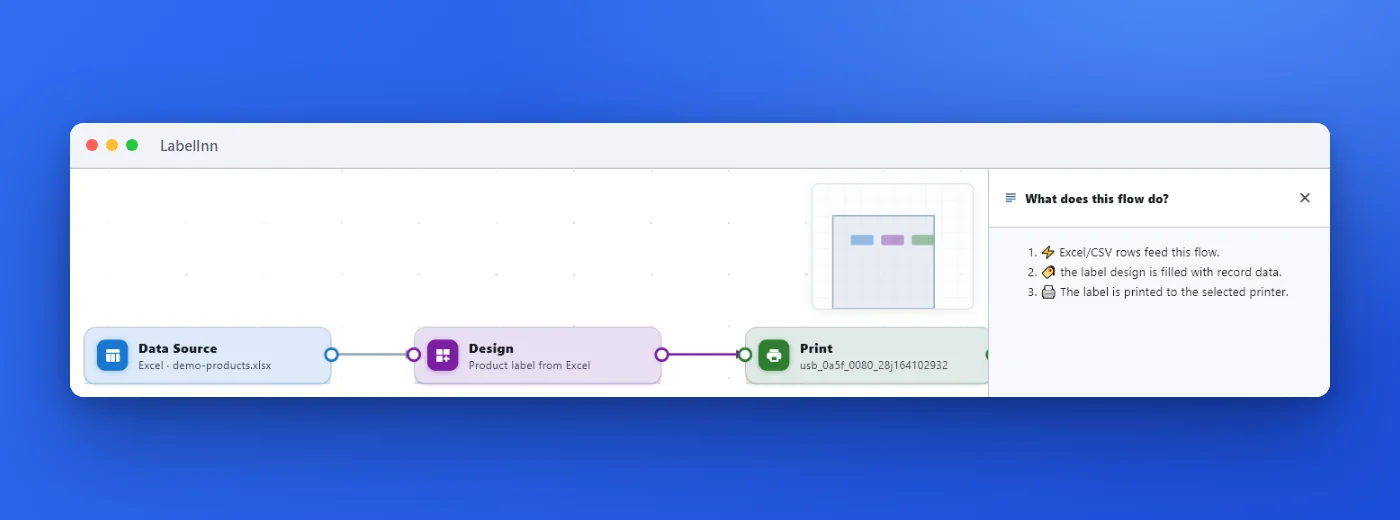 4Read what it will doThe Summary describes the flow in plain sentences before you run it.
The fixThe run becomes a diagram of three boxes that anyone can read, change and start again.Build your first workflow
ANY PRINTER
Design it, bind your data, print on the printer you already own.
Zebra, TSC, Toshiba, Epson and more — over USB, network or Bluetooth, with no driver to install.

PRICING
Start free. Pay when it earns its keep.
QUESTIONS / FAQ
Frequently Asked Questions
What is a label printing workflow in LabelInn?
A visual node graph that turns an incoming event — an ERP record, a marketplace order, or an API call — into a printed label. A Router picks the right design, an optional operator Print Dialog adds a human checkpoint, and a Print node sends the job to a real printer. It runs on a cloud runtime or an on-prem edge runtime.
Can an API call trigger an entire workflow?
Yes. A single POST https://labelinn.com/v1/print/jobs can trigger a whole workflow server-side. The payload flows through Router → Design → Print, so one request drives the complete event-to-label path.
Does the workflow run in the cloud or on-premises?
Both. There's a cloud runtime and an on-prem edge runtime. The edge runtime is offline-capable and prints over your LAN with local HTTP, so labels keep printing even during an internet outage.
What is LOT → design swap?
It lets the operator Print Dialog automatically switch to a different design based on an incoming value such as a LOT or batch number — the right artwork is selected at print time, with no workflow rebuild.
KEEP GOING
Related
NEXT STEP / LABELINN
From Event to Printed Label — Visually
Stop scripting fragile print pipelines. Build a workflow you can see, lint, and hand to an operator — then trigger it from your own systems. · Router → Design → Print Dialog → Print · Cloud + on-prem edge runtimes · One API call triggers the whole flow