If your ZD621 has the color LCD, open the on-screen menu and choose the media calibration action — the display walks you through it
JULY 1, 2026 / PRINTER ISSUES
Zebra ZD621 Not Printing, Skipping Labels, or Feeding Blanks? Here's the Real Fix
Zebra ZD621 not printing or skipping labels? Fix it fast: run SmartCal, set the media type, and check the Windows driver. Free 2026 step-by-step guide.
FREE PLAN · NO CREDIT CARD · WINDOWS / MAC / LINUX / WEB
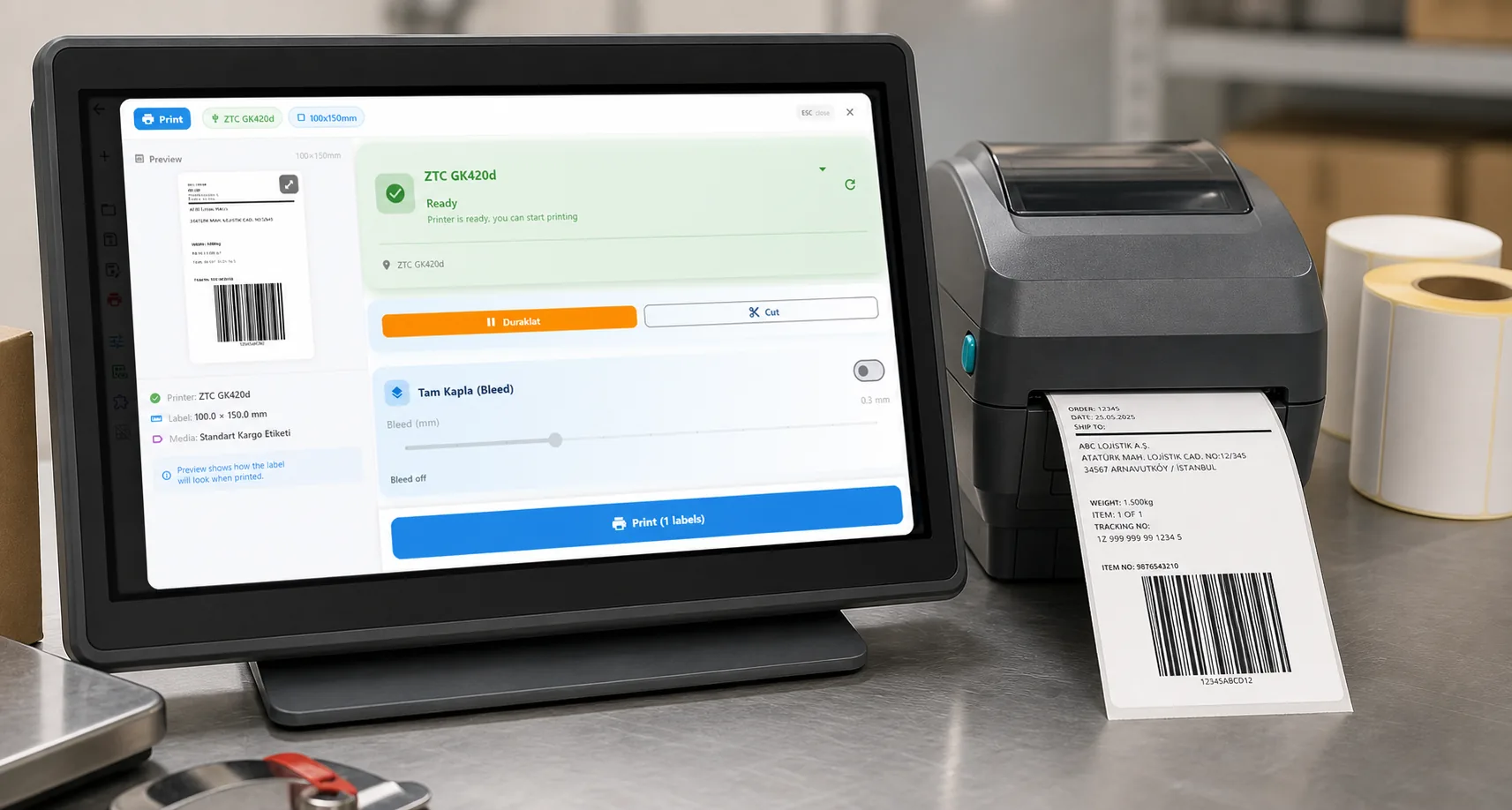
THE PROBLEM
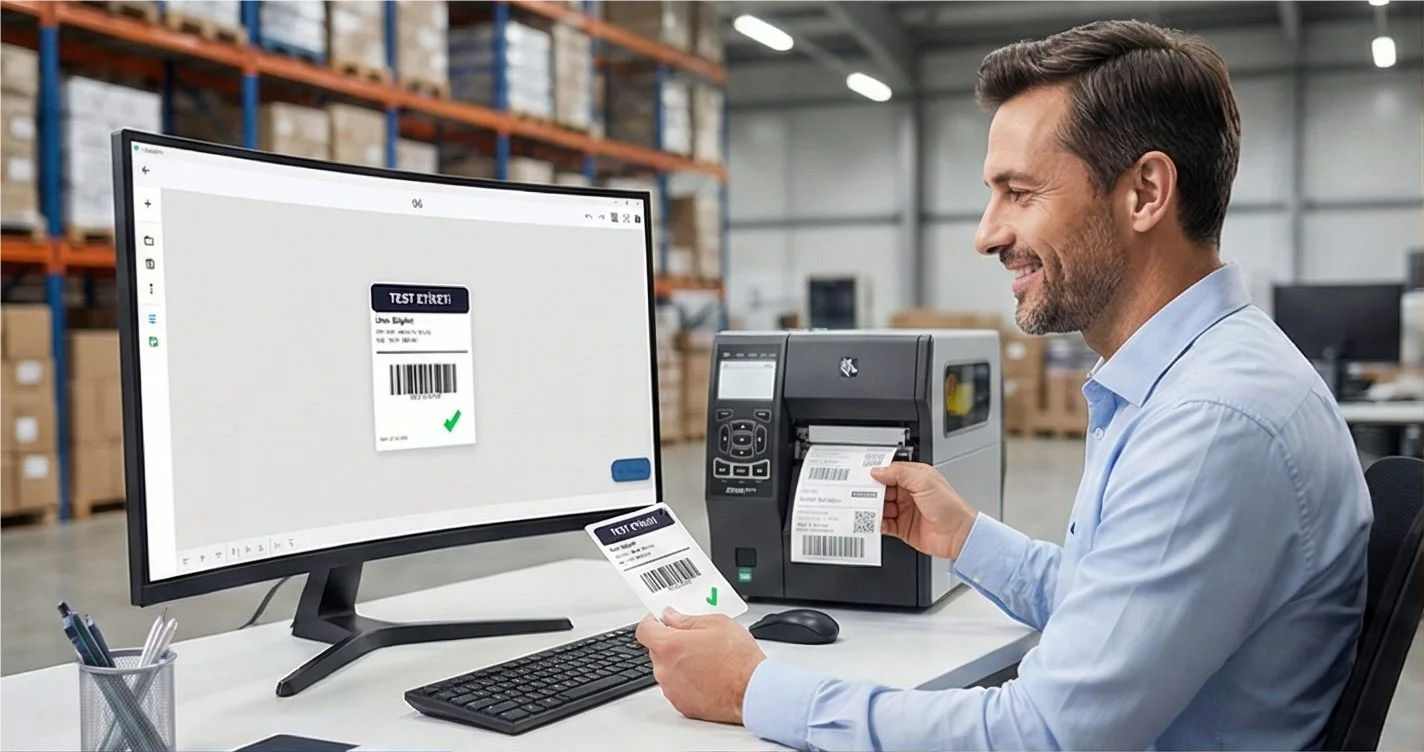
You send a job to your Zebra ZD621 and it does nothing, spits out a blank label, feeds two or three labels for a single print, or prints one label and stops cold. You've reloaded the roll, power-cycled, maybe reinstalled the driver — and it keeps happening. The ZD621 is a step up from Zebra's budget desktop line, so it stings a little more when it acts up, but the causes are the same: this is almost always a calibration, media, or driver problem, not a dead printer.
The ZD621 is a premium desktop printer that comes in direct-thermal (DT) and thermal-transfer (TT) versions, at 203 or 300 dpi, and it uses a media sensor to find the edge of each label. When it "skips" or feeds blanks, it has lost track of where one label ends and the next begins, so it either overshoots or prints in the wrong place. On the TT model there's an extra variable — the ribbon. And because many ZD621 units are networked or carry the color LCD, there are a couple of gotchas the cheaper models don't have. Let's work through it in order, fastest fix first.
Tired of the Windows driver fighting your Zebra? LabelInn speaks ZPL directly to the ZD621 — it sets media type, resolution and label size correctly every time, and it works on macOS too. Try free for 14 days →
01
Symptoms: What This Looks Like
- Printer feeds one or more blank labels for every print job
- Skips every other label — prints one, feeds past the next
- Prints one label and stops, ignoring the rest of the batch
- Content is shifted up or down, or spills across the gap onto two labels
- Output is faint or half-printed — common when 300 dpi darkness is too low
- The TT model feeds completely blank because no ribbon is loaded
- A networked ZD621 goes silent after a router reboot or IP change
- It worked fine, then broke after a Windows update or after changing label size
Fix 1: Run SmartCal Calibration (Start Here)
Calibration teaches the ZD621 the exact length of your labels and the size of the gap between them. Any time you change label size, switch rolls, swap between DT and TT media, or start seeing skipping, this is the first thing to do — it resolves the majority of skipping and blank-feed cases on its own.
Method A: FEED-button SmartCal (fastest)
- Make sure labels are loaded correctly and the cover is closed, with a solid green status light
- Press and hold the FEED button for a couple of seconds
- Release when the indicators flash and the printer feeds one or two labels to measure the gap
- Send a test print. The label should now print in the right place without skipping.
Method B: LCD menu or Zebra Setup Utilities (guided)
Or download Zebra Setup Utilities from the Zebra ZD621 support page
Select your ZD621, click Open Printer Tools → Action → Calibrate Media, and confirm the reported label length looks right for your media
Fix 2: Set the Correct Media Type
The ZD621 has to know what kind of media it's looking at. If it's set to Continuous but you're printing die-cut labels, it will never find the gap and will feed blanks or skip. This single setting is behind a huge share of "skipping labels" reports on every Zebra desktop printer, the ZD621 included.
| Your labels | Set Media Type to |
|---|---|
| Die-cut labels with a gap between them | Gap / Web (Transmissive) |
| Labels or tags with a black mark on the back | Mark (Reflective) |
| Continuous receipt / tag roll (no gap) | Continuous |
Set this in Zebra Setup Utilities → Configure Printer Settings → Media Settings, on the Advanced Setup tab of the ZDesigner driver, or from the LCD menu if your ZD621 has the display. After changing it, run SmartCal again (Fix 1) so the new setting takes effect.
Fix 3: Match Darkness, Resolution, and Ribbon (DT vs TT, 203 vs 300 dpi)
This is the fix people miss on the ZD621 specifically, because it exists in more variants than the budget models. Two things bite here: the ribbon on the TT model, and darkness on the 300 dpi head.
| Situation | What to check |
|---|---|
| TT model feeds totally blank | No ribbon loaded — the thermal-transfer ZD621 needs a ribbon to print at all |
| Faint / patchy print, especially small text | Darkness too low — raise it; 300 dpi needs more heat for fine detail |
| Ribbon loaded but still faint | Wrong ribbon type for the material (wax vs wax-resin vs resin), or ribbon in backwards |
| DT model prints blank | Labels upside down, or non-thermal media in a direct-thermal setup |
On a TT ZD621, confirm a ribbon is loaded and threaded correctly — no ribbon means a blank feed no matter what you print
Raise the darkness / heat setting a few steps if text is faint; the 300 dpi head needs more energy than 203 dpi for the same solid look
Confirm your app or driver is set for the right resolution — a 300 dpi label sent as 203 dpi (or vice-versa) prints the wrong physical size
On the DT model, scratch a blank label with your fingernail; the side that turns dark is the printable side and must face the printhead
Fix 4: Reinstall the Driver or Fix the Network Connection
If the ZD621 prints one label and stops, prints off-center, or broke right after a Windows update, the driver is the prime suspect. Windows 11 often auto-installs a generic driver that reports the wrong label size, so the printer stops after what it thinks is the last label — or shifts everything. And because many ZD621 units are on Ethernet or Wi-Fi, there's a second failure mode the USB-only models don't have: a changed IP address.
Windows driver (USB)
Open Settings → Bluetooth & devices → Printers & scanners, select the ZD621, and Remove it
Install Zebra Setup Utilities, connect via USB, and let it install the ZDesigner driver for your exact model and resolution
Open Printer Properties → Preferences and set the label size and darkness to match your media exactly
Print a Windows test page. If the test page is correct but your app still fails, the problem is the app's page size, not the printer.
Networked ZD621 (Ethernet / Wi-Fi)
Check the printer's current IP address — from the LCD status screen, or print a configuration label by holding FEED per Zebra's instructions
In Windows, open Printer Properties → Ports and confirm the TCP/IP port points to that same IP; a router reboot or DHCP change silently breaks it
Set a static IP or DHCP reservation so the ZD621's address stops moving and jobs stop vanishing
02
The Root Cause for Many Users: The Windows Driver Itself
Notice how many of these fixes come back to the driver — or the port — telling the printer the wrong thing. That's not a coincidence. On Windows, and especially on macOS where Zebra's driver support for the ZD621 is thin, the driver layer is where most headaches live. The printer's firmware and that nice color LCD are fine; the pipeline feeding it commands is what breaks.
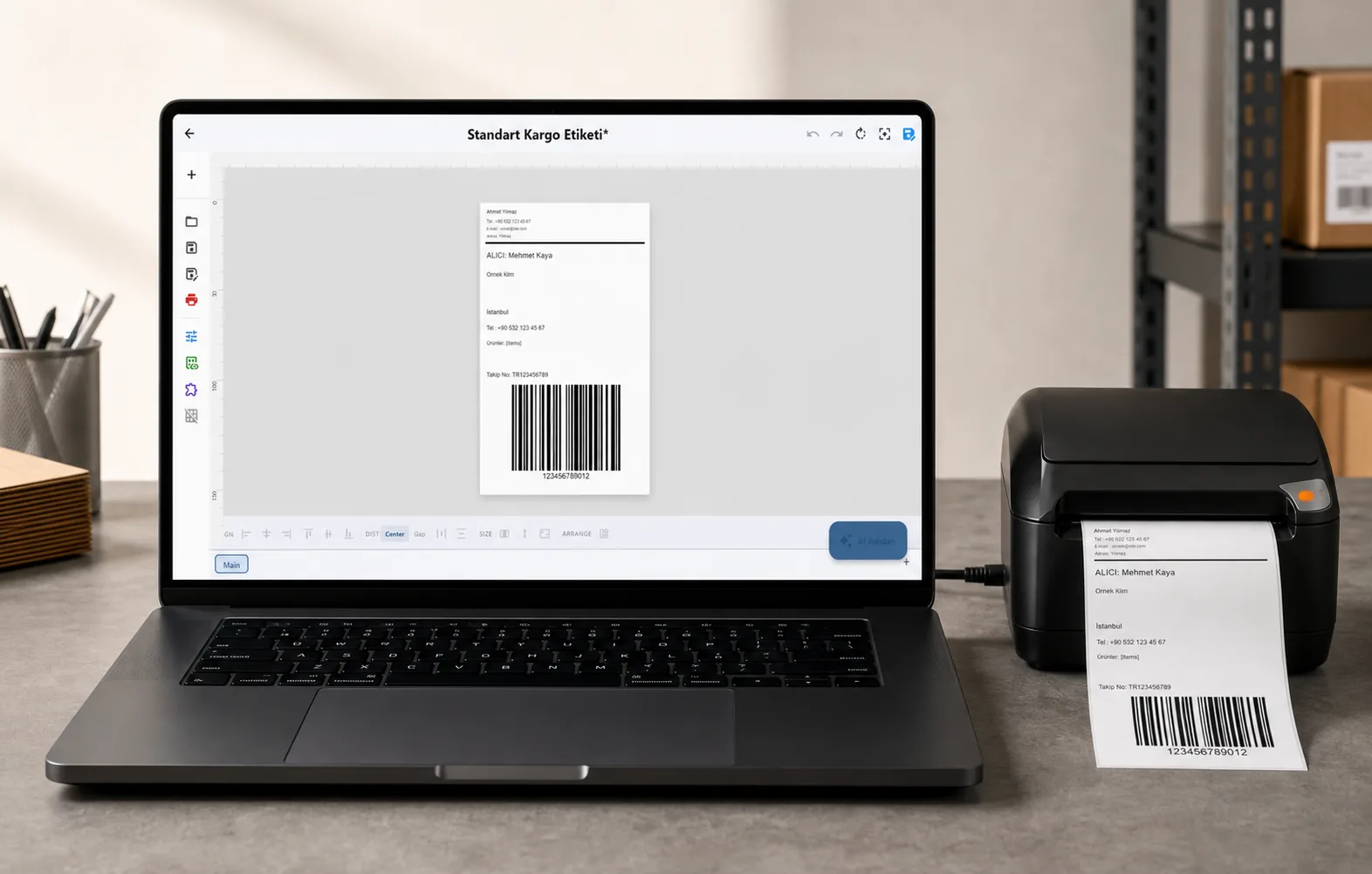
That's exactly why some teams take the driver out of the loop. The ZD621 understands ZPL, Zebra's own printer language, directly. Driverless label software like LabelInn sends ZPL straight to the printer over USB or the network — it sets the media type, resolution, and label size correctly on every job, so there's no generic-driver guessing, no "prints one label and stops," and it works identically on macOS and Windows. If you print in batches, you can even drive it straight from an Excel sheet without touching the driver.
QUESTIONS / FAQ
Frequently Asked Questions
How do I calibrate a Zebra ZD621?
Fastest way: with the printer loaded and the status light solid green, press and hold the FEED button for a couple of seconds until the indicators flash and it feeds one or two labels — that's SmartCal. On units with the color LCD you can start a media calibration from the display, and Zebra Setup Utilities offers a guided Calibrate Media action.
Why does my ZD621 skip every other label?
It can't see the gap between labels. Either it needs SmartCal calibration, or Media Type is set wrong (commonly Continuous instead of Gap/Web). Set Media Type to Gap/Web, run SmartCal, and the skipping stops.
My ZD621 prints one label then stops. What causes that?
The label size in the driver or app doesn't match your physical label, so the printer thinks the job is done. Reinstall the ZDesigner driver via Zebra Setup Utilities, set the label dimensions to match your media exactly, and confirm you selected the right 203 or 300 dpi model. On a networked unit, also check the port still points at the printer's current IP.
My thermal-transfer ZD621 feeds blank. Why?
The TT model needs a ribbon to print — with no ribbon, or a ribbon threaded backwards, it feeds blank. Load the correct ribbon (wax, wax-resin, or resin for your material), thread it per the label inside the cover, and raise darkness if the result is faint. On the direct-thermal model a blank feed instead means the labels are upside down.
Can I use a Zebra ZD621 on a Mac?
Zebra's macOS driver support for the ZD621 is limited, so many Mac users can't print through the normal driver path. Because the ZD621 speaks ZPL, a driverless app like LabelInn can drive it directly from macOS (and Windows) over USB or the network, handling calibration, resolution, and label size for you.
KEEP GOING
Related Articles
NEXT STEP / LABELINN
Skip the Driver Guesswork on Your ZD621
LabelInn talks to your Zebra ZD621 in its native ZPL language, setting media type and dimensions correctly so calibration sticks and jobs finish clean — on both the 203 and 300 dpi, DT and TT variants. Design labels visually or from Excel, connect a marketplace like eBay to pull orders, and print without wrestling the driver. Free tier available; paid plans from $7.99/month. · Direct ZPL — no Windows driver in the middle · Correct label size & dpi every job · Works on macOS & Windows