AUGUST 8, 2026 / AUTOMATION
Thermal Printer Automation: Labels That Print Themselves
Automate thermal label printing: watched folders, REST API, marketplace order triggers, scheduled jobs and AI agents. Zebra, TSC, Toshiba, Epson.
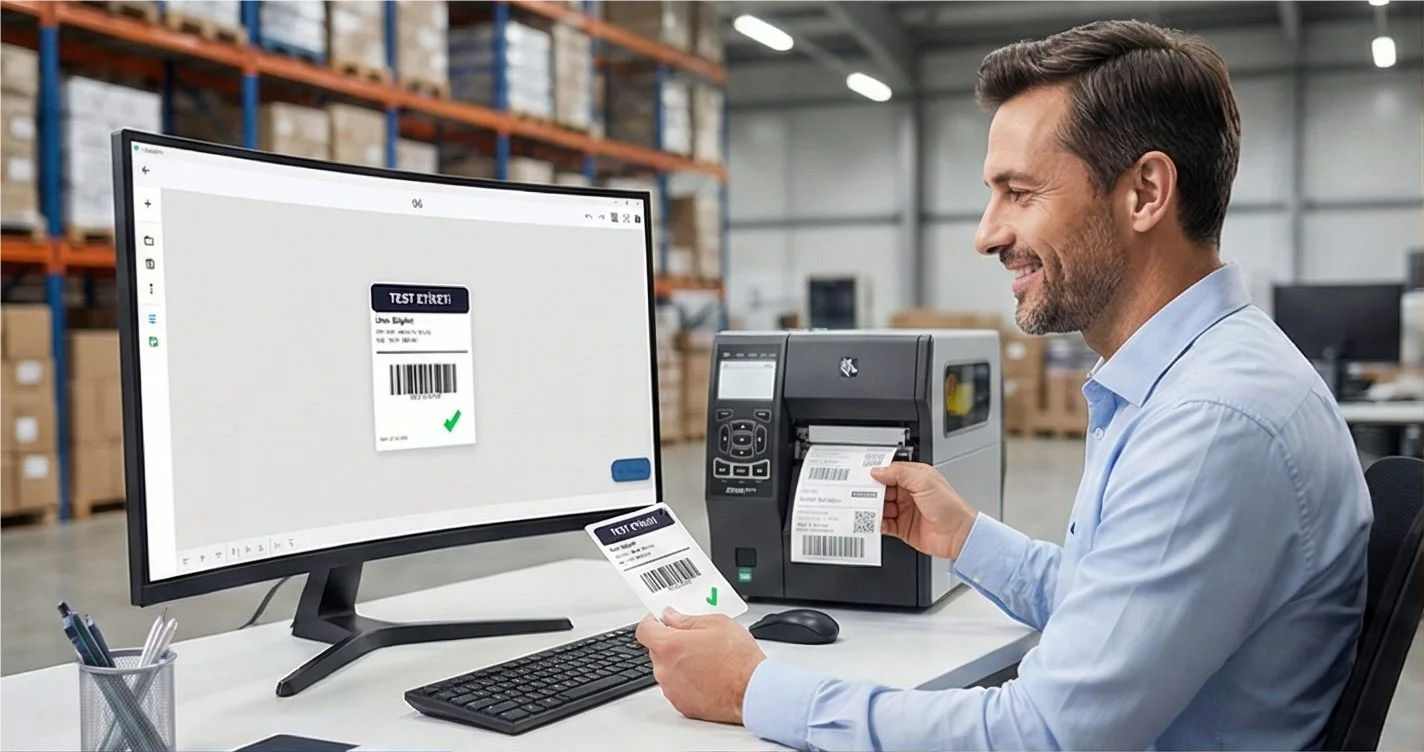
THE PROBLEM
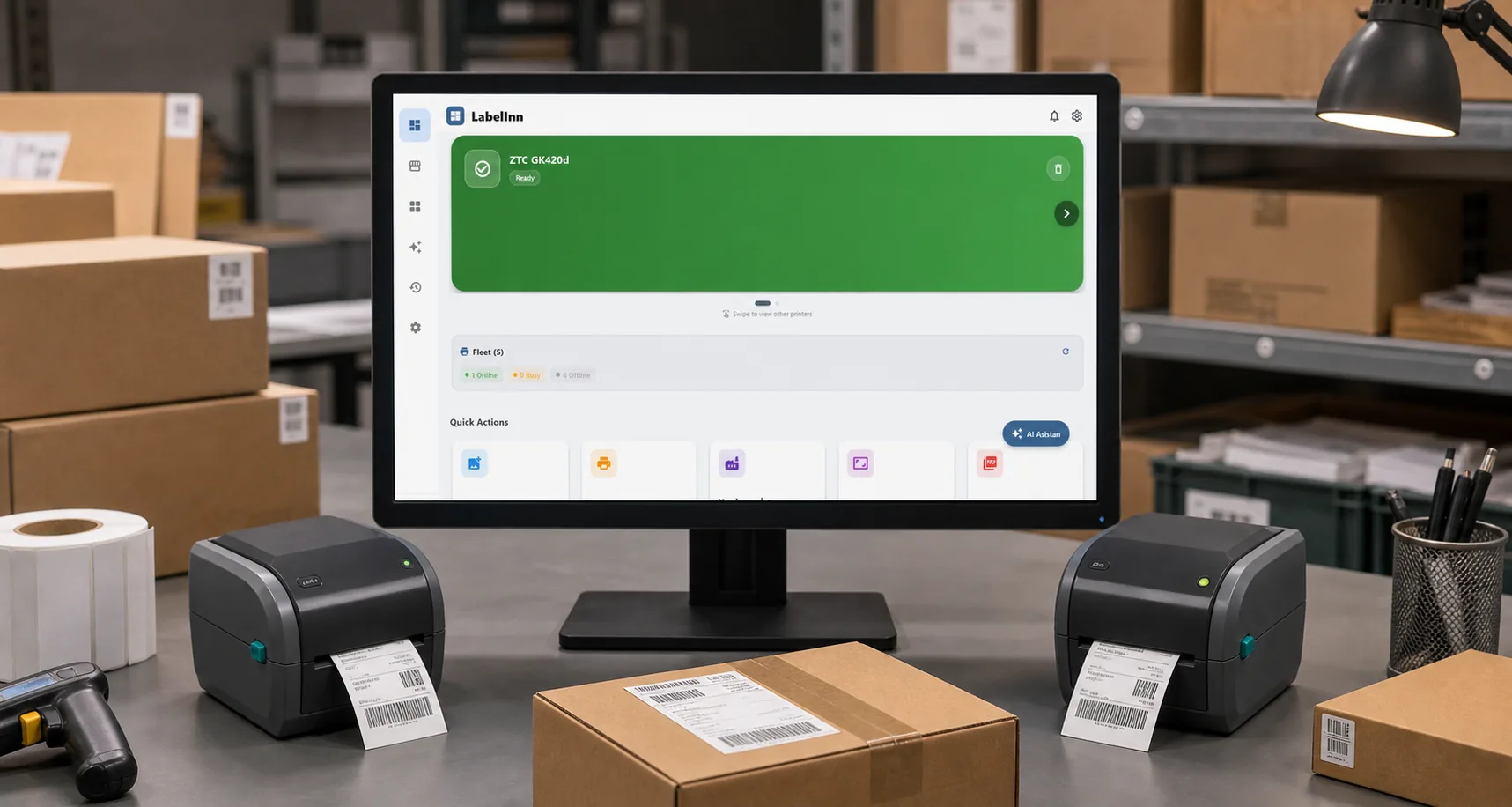
Most label printing is a person copying data from one screen into another and pressing print. It is the kind of task that looks small until you count it: a hundred labels a day, three minutes of attention each, all of it re-keying data a computer already has.
Automating it is not a single feature — it depends on where the data lives and what triggers the print.
Your printer almost certainly already works. LabelInn writes native ZPL, TSPL/TSPL2, TPCL, ESC/Label, EZPL and PPLB — the languages behind 50+ printer brands, from Zebra, TSC, Honeywell, SATO and Toshiba to Xprinter, Gprinter, HPRT, iDPRT and Postek. See compatibility by language →
HOW IT WORKS
Three screens from data to printed label.
No copy-paste, no hunting for templates. The same flow repeats for every record.
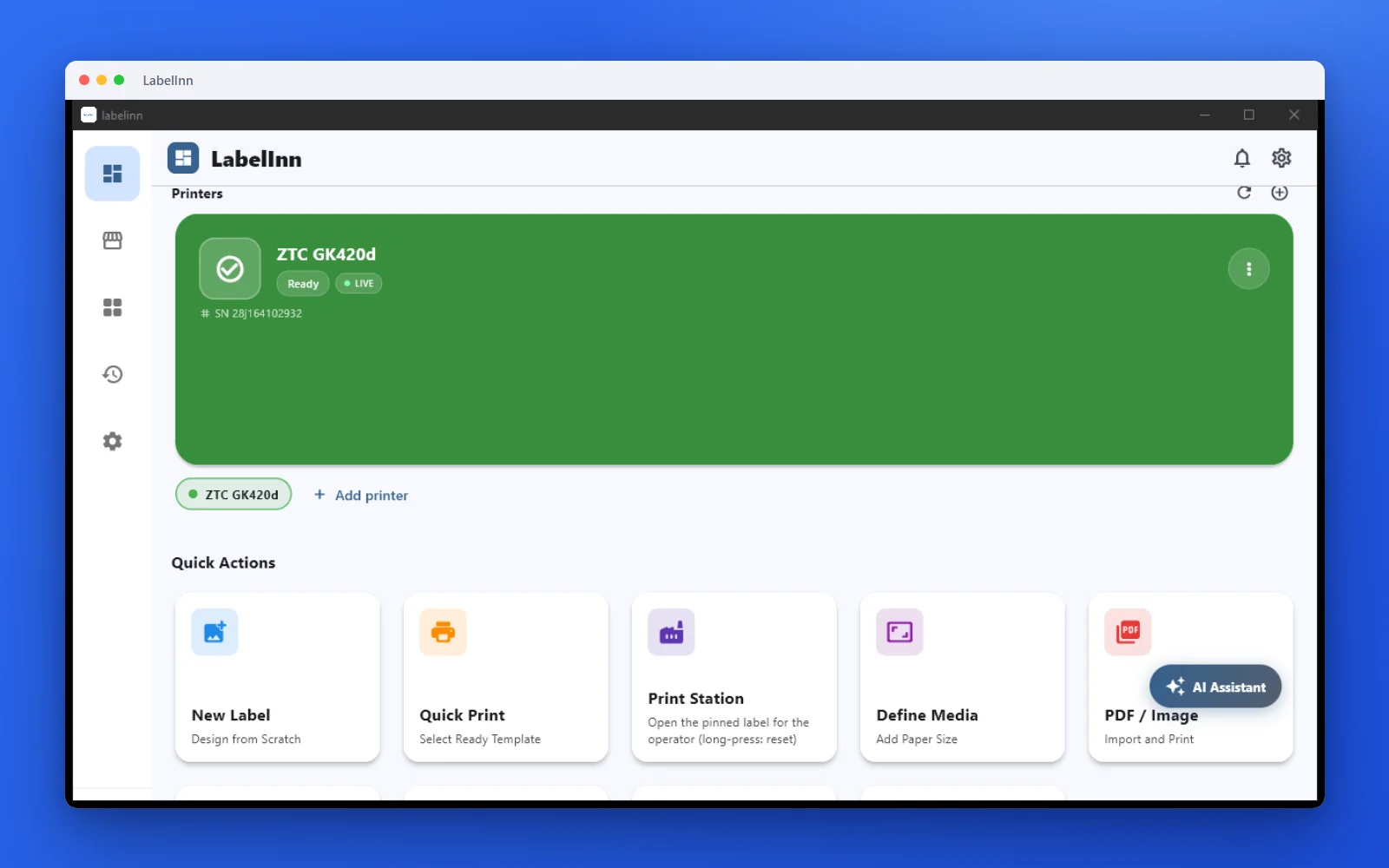
Printer status, quick actions and recent work in one place.
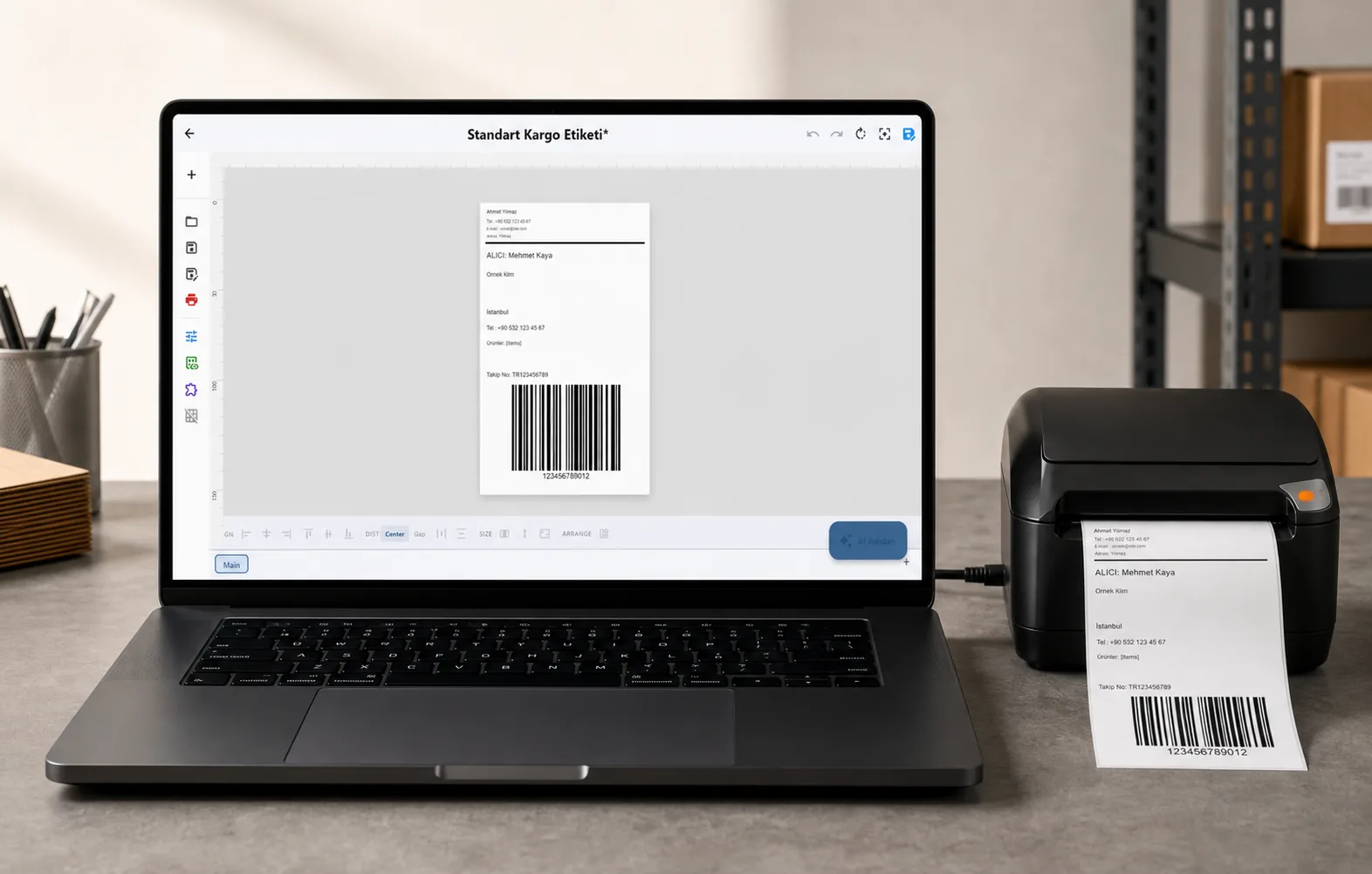
Text, barcodes, QR and images placed on the real media size.
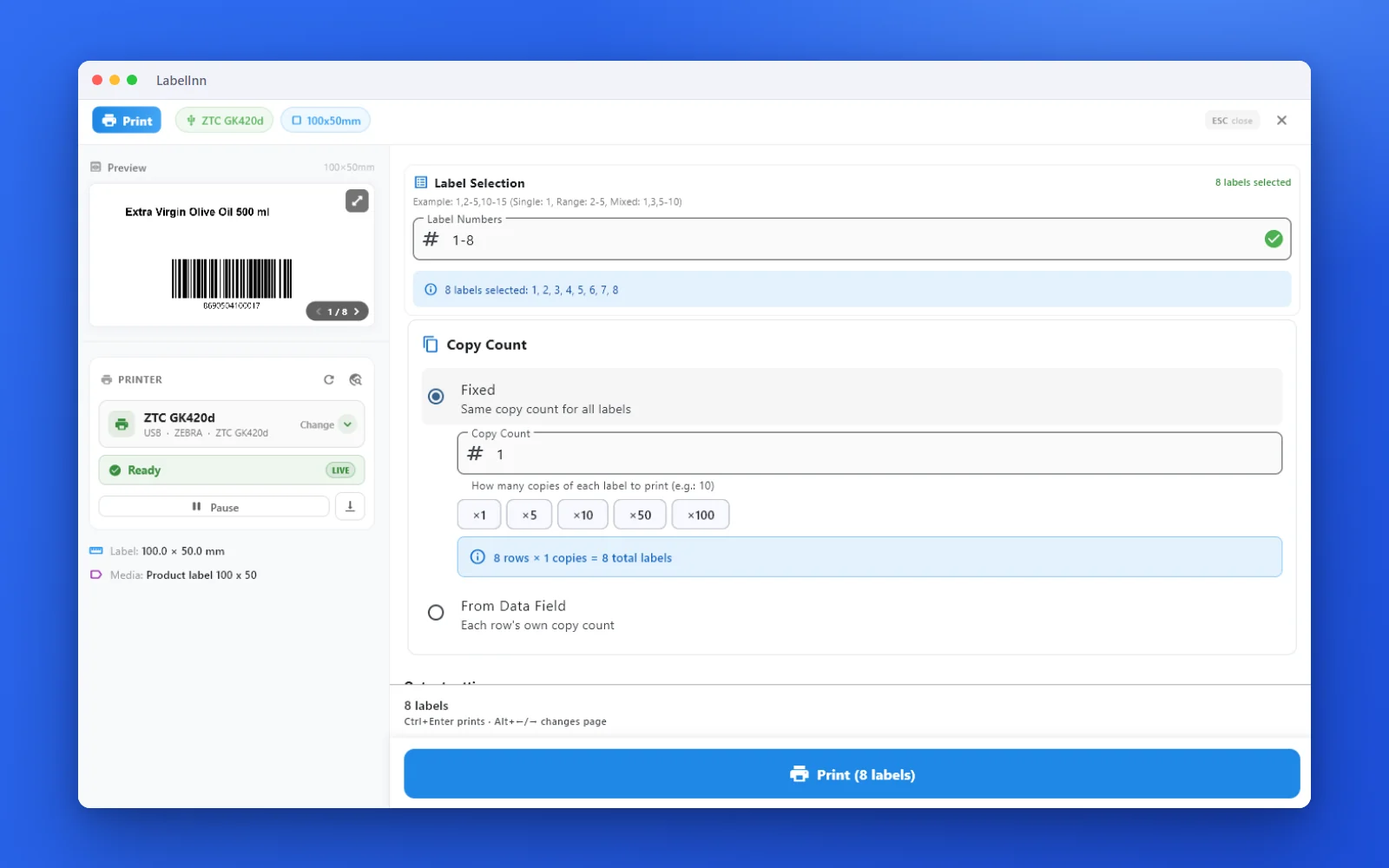
See the label, the printer state and the copy count before it prints.
01
Four ways to trigger a print
1. Watched folder — for systems that export files
Point LabelInn at a folder. Any CSV or XLSX dropped in is read, mapped to a template, and printed one label per row. This is the shortest path for legacy ERPs, because every one of them can write a file even if it cannot call an API. How it works in detail: hot folder label printing.
2. REST API — for systems that can call out
Your software posts to /v1/print/jobs with the data and a template id. Best when you want the print to be a step in your process rather than a side effect of an export.
3. Workflows — for event-driven printing
A visual workflow chains a trigger to a print. Sources, transforms, routers, printers and notification steps connect on a canvas: order arrives → map fields → pick a template → print to the pack-bench printer → notify on failure.
4. Schedules and agents
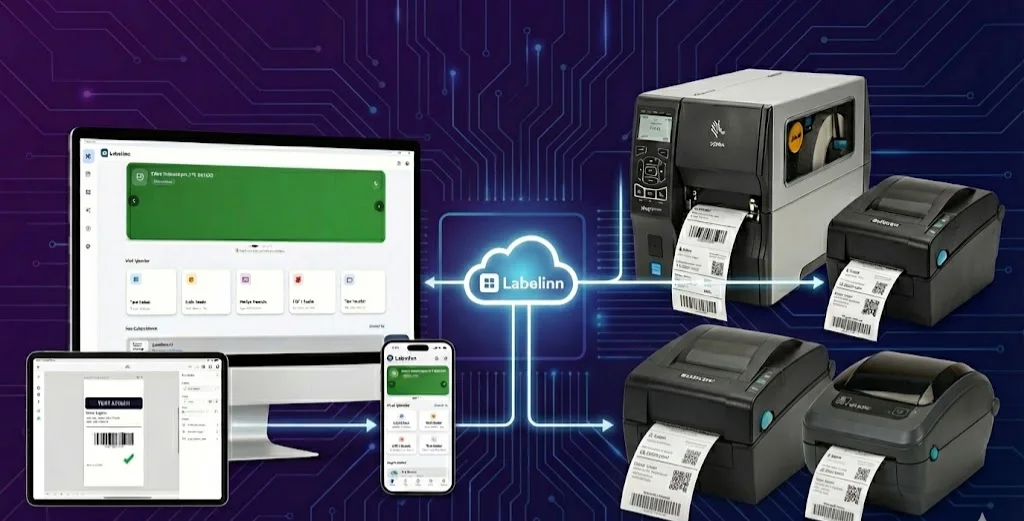
Run a job on a cron schedule, or let an AI agent submit prints over the MCP server — the same API surface a human uses, exposed to Claude, GPT, Copilot or Cursor.
02
The parts that stop automation breaking
Serial numbers that survive a crash
Serialised fields are allocated server-side, so two machines printing the same batch never mint the same serial, and a crash mid-run does not restart the counter.
Failure that is visible
An automated print that silently fails is worse than one that never ran. LabelInn reads printer status — out of paper, cover open, head open, paused — and reports the specific fault, with optional email, SMS or WhatsApp notification.
Ordered, complete batches
Rows print in order, and every row is captured. There is no sampling and no "first 100" cap.
03
What gets automated in practice
- Marketplace shipping labels — order lands, label prints at the bench
- Production and batch labels — one label per unit from a work order
- Inbound goods — barcode labels generated from a receiving file
- Expiry and lot labels — date maths and lot codes computed at print time
- Reprints — an exception triggers a corrected label without a person hunting for the original
ANY PRINTER
Design it, bind your data, print on the printer you already own.
Zebra, TSC, Toshiba, Epson and more — over USB, network or Bluetooth, with no driver to install.

PRICING
Start free. Pay when it earns its keep.
KEEP GOING
Related
NEXT STEP / LABELINN
Stop re-keying data into labels